Navigation
Vault access. Public access is not open. This product is separate from initial Identity and Apparatus access.
Screenshots use fictional demonstration accounts. Your data and available actions may differ. Reviewed October 16, 2026.
Clients
Connect a client to Vault
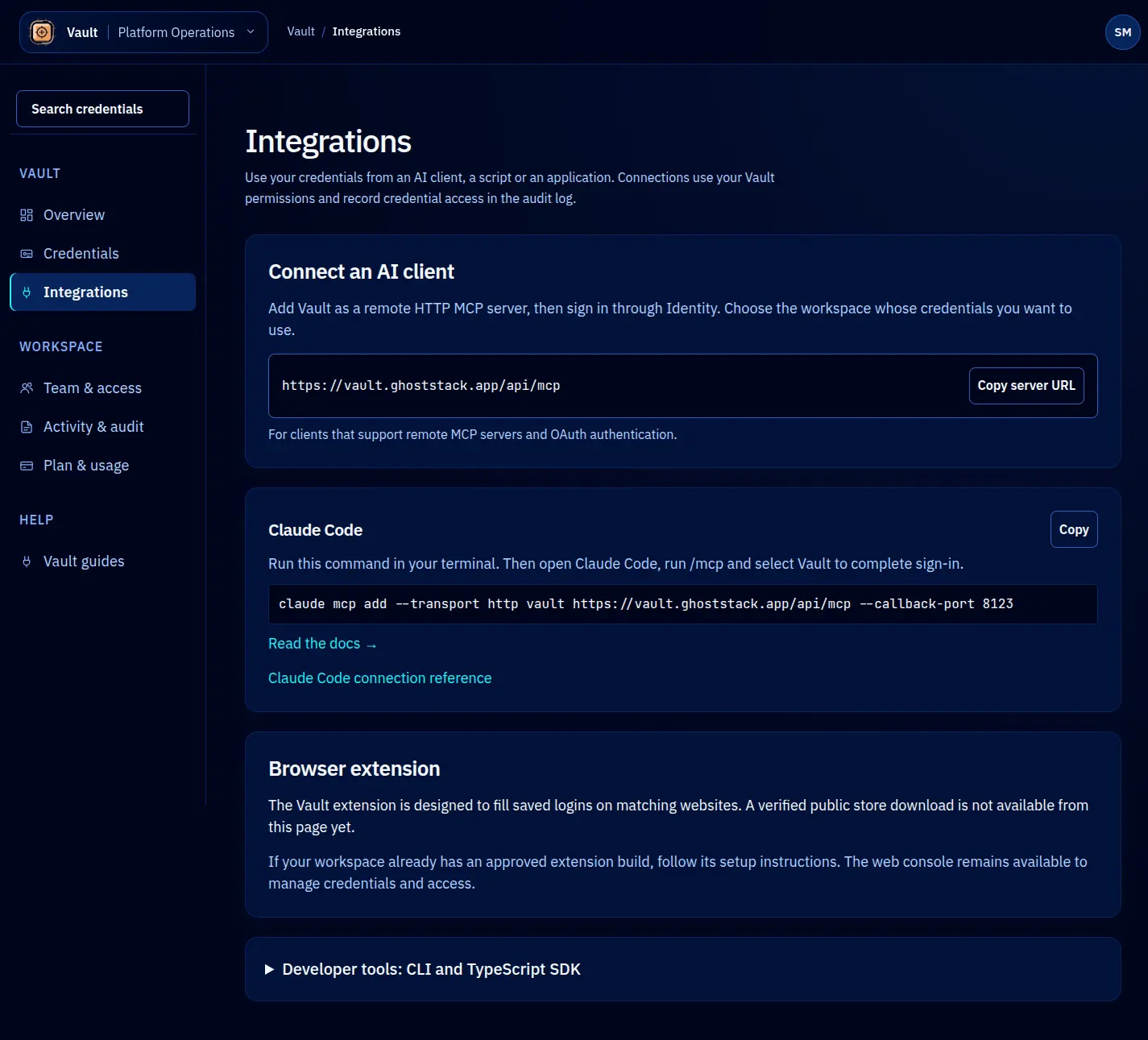
Open Integrations in Vault to choose a connection method. Use the current workspace and an account or service identity with explicit access to the required credentials.
Choose a path
| Client | Use it for | Start here |
|---|---|---|
| Remote MCP | Supported AI clients using Identity authorization | Claude Code |
| CLI | Authorized local commands and controlled process injection | CLI guide |
| TypeScript | Server applications with an Identity token source | SDK guide |
The MCP server URL is https://vault.ghoststack.app/api/mcp. Copy it from the integration card. It is a remote Streamable HTTP service, not a local stdio package.
Expand Developer tools: CLI and TypeScript SDK for examples. Both require access to the authorized source or private package registry. There is no verified public Vault browser-extension installation path in this console; see extension status.
Verify the connection
Confirm your identity and workspace first, then list permitted metadata. Start with a synthetic credential. Only request a lease when the client is ready to consume its value. Check that the client keeps plaintext out of transcripts and logs, and verify the resulting event in Activity & audit.
A connected client still needs the correct token audience, scope and domain permission. If it receives a denial, check those separately rather than broadening access without understanding the cause.
Screen reference