Navigation

guides

MCP Integration with Claude Code

Why MCP?

The Model Context Protocol (MCP) lets AI coding tools interact with external services through a standardized interface. Instead of pasting API keys into .env files or chat windows, Claude Code can request credentials from Vault directly. Vault authenticates the request, creates a time-limited lease, records the agent’s identity, and returns the credential value, all through the MCP protocol.

This is the core of Vault’s agent-era positioning. Traditional credential managers require a human to copy-paste secrets. Vault’s MCP server makes credential access a native capability of the AI coding workflow.

Install the MCP server

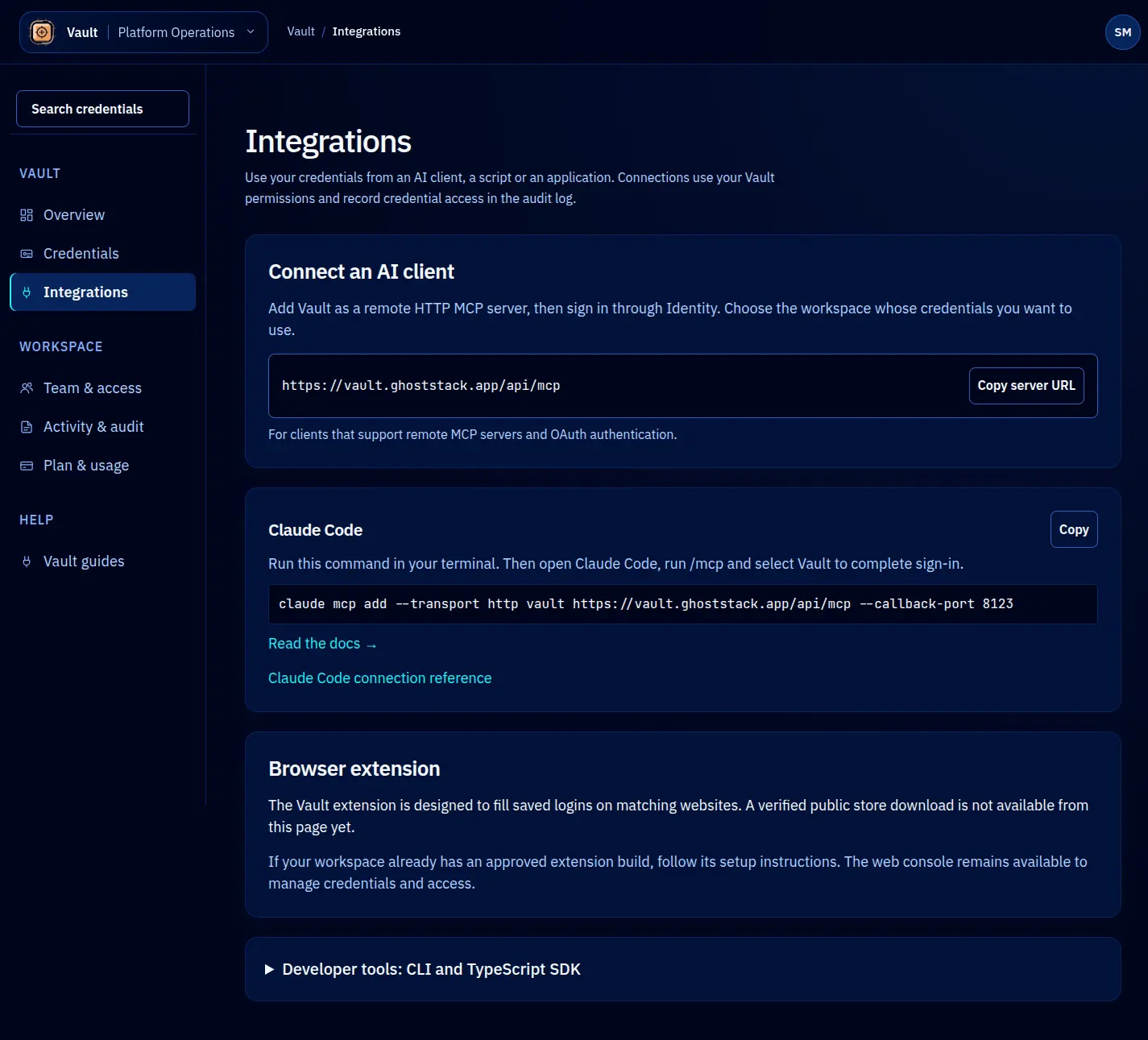
Vault speaks Streamable HTTP MCP and authenticates via OAuth 2.1. Claude Code’s built-in MCP client handles the OAuth flow end-to-end. From any directory, run:

claude mcp add --transport http vault https://vault.ghoststack.app/api/mcp \
  --callback-port 8123

What happens:

  1. Claude Code reads Vault’s Protected Resource Metadata at https://vault.ghoststack.app/.well-known/oauth-protected-resource to learn the authorization server URL and supported scopes.
  2. Claude Code registers itself with identity via Dynamic Client Registration (RFC 7591). Identity returns a unique client_id; Claude Code caches it locally.
  3. Claude Code starts a loopback HTTP server on 127.0.0.1:8123, opens your browser to identity’s /oauth/authorize, and waits for the redirect.
  4. You sign in to identity once and consent to the requested Vault scopes (default vault:read vault:write; see scopes reference).
  5. Identity redirects back to the loopback URL with an authorization code. Claude Code exchanges it for a JWT bound to Vault’s MCP audience.
  6. Your browser tab is redirected one more time to https://vault.ghoststack.app/oauth/complete so you see a confirmation rather than a “this page can’t be reached” error.

After the flow, claude mcp list shows vault ✓ Connected. The token is cached locally and reused on subsequent runs; the browser pop only appears on first install or after a token expires.

How it works

Once configured, Claude Code gains access to these MCP tools:

  • vault.list_credentials — list available credentials in a folder by metadata (no values).
  • vault.lease_credential — request a time-limited lease on a credential by key. Returns a signed lease handle.
  • vault.read_credential — redeem a lease handle to read the credential plaintext.
  • vault.rotate_credential — begin a dual-window rotation on a credential.
  • vault.search_credentials — fuzzy-match by key, tag, or type.
  • vault.get_credential_metadata — read metadata without leasing (audit log, owners, tags).

When Claude Code needs an API key to make a request or a database URL to run a migration, it calls vault.lease_credential followed by vault.read_credential. Vault creates a lease attributed to the Claude Code agent, with the configured TTL.

Example conversation flow

Here is what the interaction looks like in practice:

You: “Call the Stripe API to list recent charges.”

Claude Code (internal): Calls vault.list_credentials with folderPath: "stripe", picks the matching key, calls vault.lease_credential and then vault.read_credential.

Vault MCP server: Authenticates the JWT, validates the lease was just issued, logs the access with agent attribution, and returns the API key value.

Claude Code: Uses the key to call the Stripe API and shows you the results.

The credential never appears in the chat. Claude Code receives it through the MCP channel and uses it in the API call. The audit log records that Claude Code accessed stripe-api-key at a specific time, with the declared purpose.

Token lifetime and refresh

The OAuth flow issues an access token whose lifetime is set by identity (typically 1 hour). When the token expires, Claude Code either uses a refresh token (if offline_access was granted) or transparently re-runs the loopback flow. From your perspective, the worst case is one extra browser hop per hour-ish.

For longer-running sessions, request offline_access at install time by adding --scope "vault:read vault:write offline_access". Identity will issue a refresh token and Claude Code rotates the access token in the background without any browser hop.

Token security

Tokens are bound to a specific audience (Vault’s MCP surface) and cannot be presented to other services. A token issued for https://vault.ghoststack.app/api/mcp is rejected by Vault’s REST API at https://vault.ghoststack.app/api/v1 and vice versa. This is RFC 8707 audience binding.

Best practices:

  • Sign in to identity once per device. The DCR client_id is per-install and recoverable: losing it just means the next Claude Code session does a fresh DCR.
  • Use Vault’s per-credential RBAC (see Team Sharing and ACLs) to scope which credentials Claude Code can lease. You assign permissions on the credential, not on the token.
  • Rotate underlying credentials regularly via vault.rotate_credential.

Configuring TTLs

Lease TTLs are set per credential (not per token). The default is 15 minutes. Operators can override per credential up to a tenant-wide maximum. See the MCP server reference for the full surface and the recommended TTL bands.

If a task takes longer than the lease TTL, Claude Code can call vault.lease_credential again to issue a fresh lease.

Troubleshooting

Browser does not open — Claude Code prints the authorize URL to stdout when it cannot launch a browser (CI, SSH session). Copy-paste the URL into a local browser.

Loopback port already in use — Add --callback-port <number> with any free port (8124, 8125, …). Identity’s DCR accepts the literal URL.

“audience mismatch” errors — The token may have been issued for a different resource (e.g., your team’s REST surface). Re-run claude mcp add ... to mint a fresh token.

“Credential not found” errors — Verify the credential key. Use vault.list_credentials to enumerate. Keys are case-sensitive.

“Permission denied” errors — Your identity user does not have a grant on the requested credential. Ask the tenant owner or use /team to elevate.

Next steps