Navigation
Vault access. Public access is not open. This product is separate from initial Identity and Apparatus access.
Screenshots use fictional demonstration accounts. Your data and available actions may differ. Reviewed October 16, 2026.
Everyday work
Find and use a credential
Browse or search
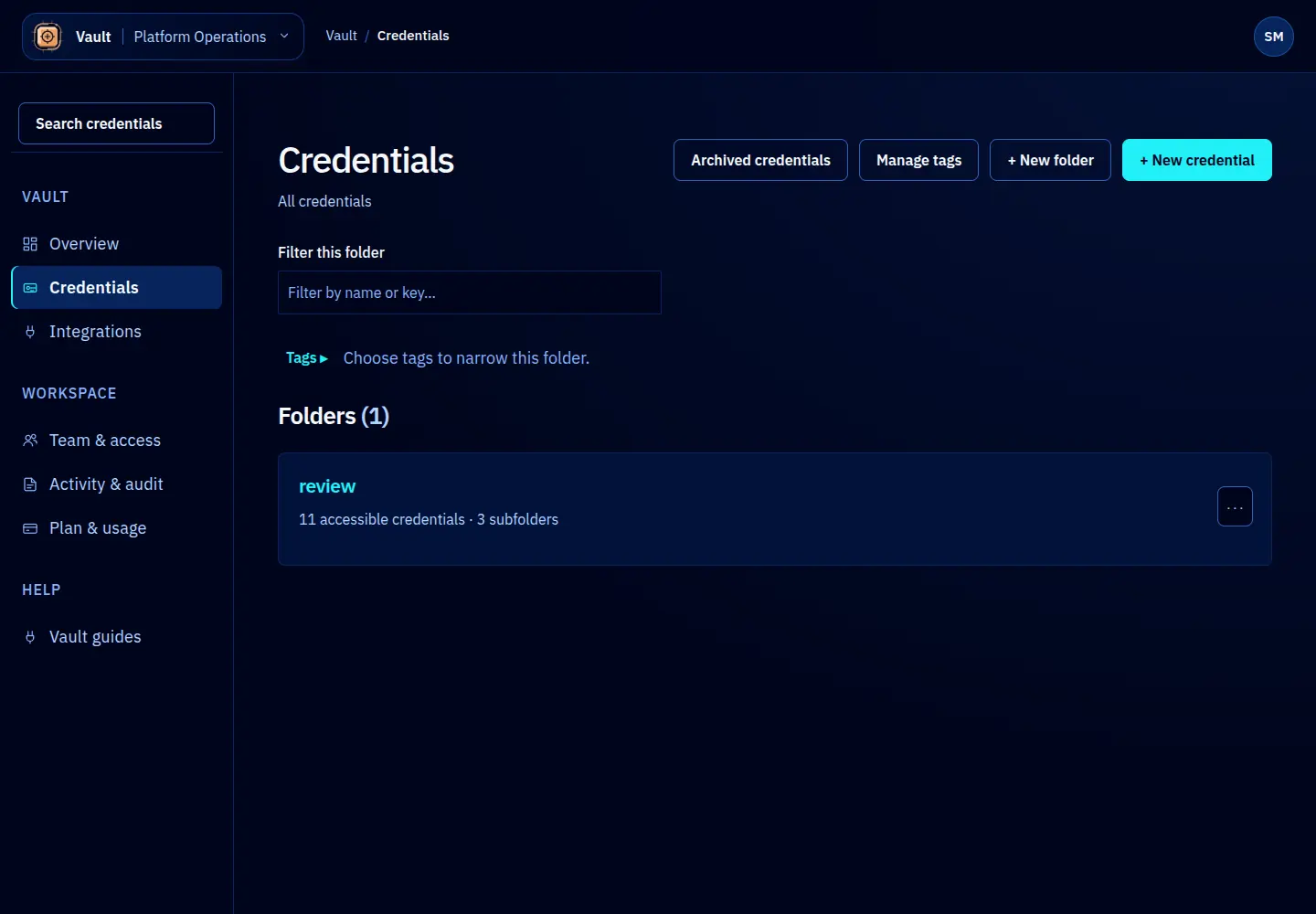
- Open Credentials. The page shows folders and accessible records at the current location.
- Open a folder or use the breadcrumb to move upward. The local filter narrows the currently loaded entries.
- For a workspace-wide search, open Search credentials in the sidebar. Enter a name, key or description. Use the arrow keys and Enter to choose a result, or Escape to close.
- Open the record and check its name, type, key and public connection details. Similar names can point to different environments.
Search returns permitted metadata, not secret contents. If nothing matches, clear the query, check the workspace, and ask an owner whether access has changed. Use Try again after a temporary search failure.
Copy the intended value
The action names what it copies: for example Copy password, Copy API token or Copy private key. Copying uses an audited lease and puts the primary value on your clipboard. It does not display the secret in the page. Paste it only into the intended destination.
For structured records, the primary value is only one field. A Login also contains a username and optional backup codes; an AWS record contains the access key ID and other connection fields; a TLS bundle contains certificates. Retrieve the complete encrypted record through an authorized SDK or CLI client. The console does not provide a full-record clipboard action.
Use Access to inspect sharing, Activity to inspect events and leases, and Manage to rotate or archive. There is no separate general metadata editor in this console; do not rotate a secret merely to tidy a description.
Screen reference