Navigation
Prospector access. Public access is not open. This product is separate from initial Identity and Apparatus access.
Screenshots use fictional demonstration accounts. Your data and available actions may differ. Reviewed October 15, 2026.
Find work
Review a lead and its actions
Open a title from Leads, Proposals or Jobs. The same record follows the opportunity through its lifecycle.
- Check the title, marketplace, posted date and current stage.
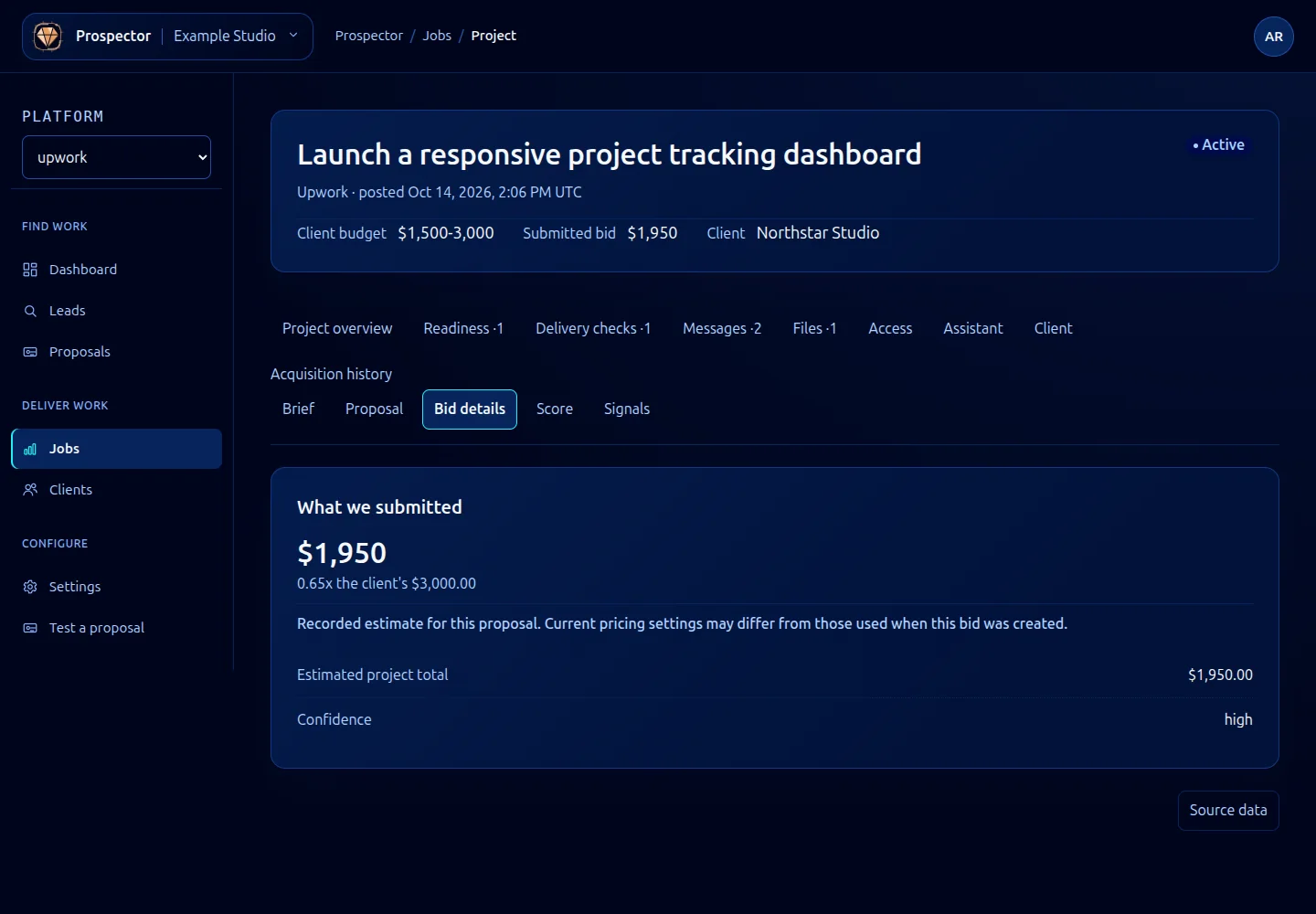
- Read the client budget, proposed or submitted bid, and known client name. Open Score for the grade and Bid details for the stored estimate.
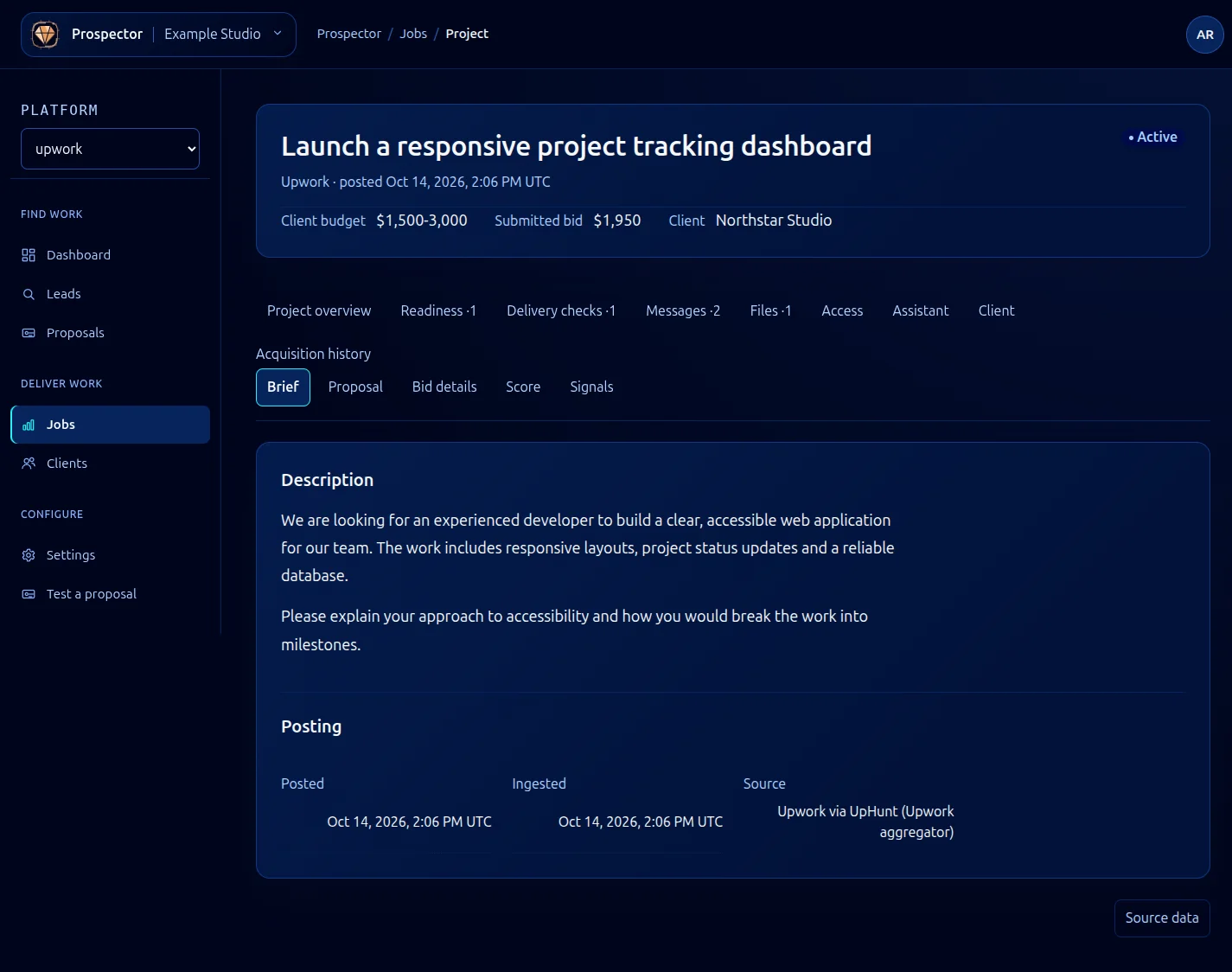
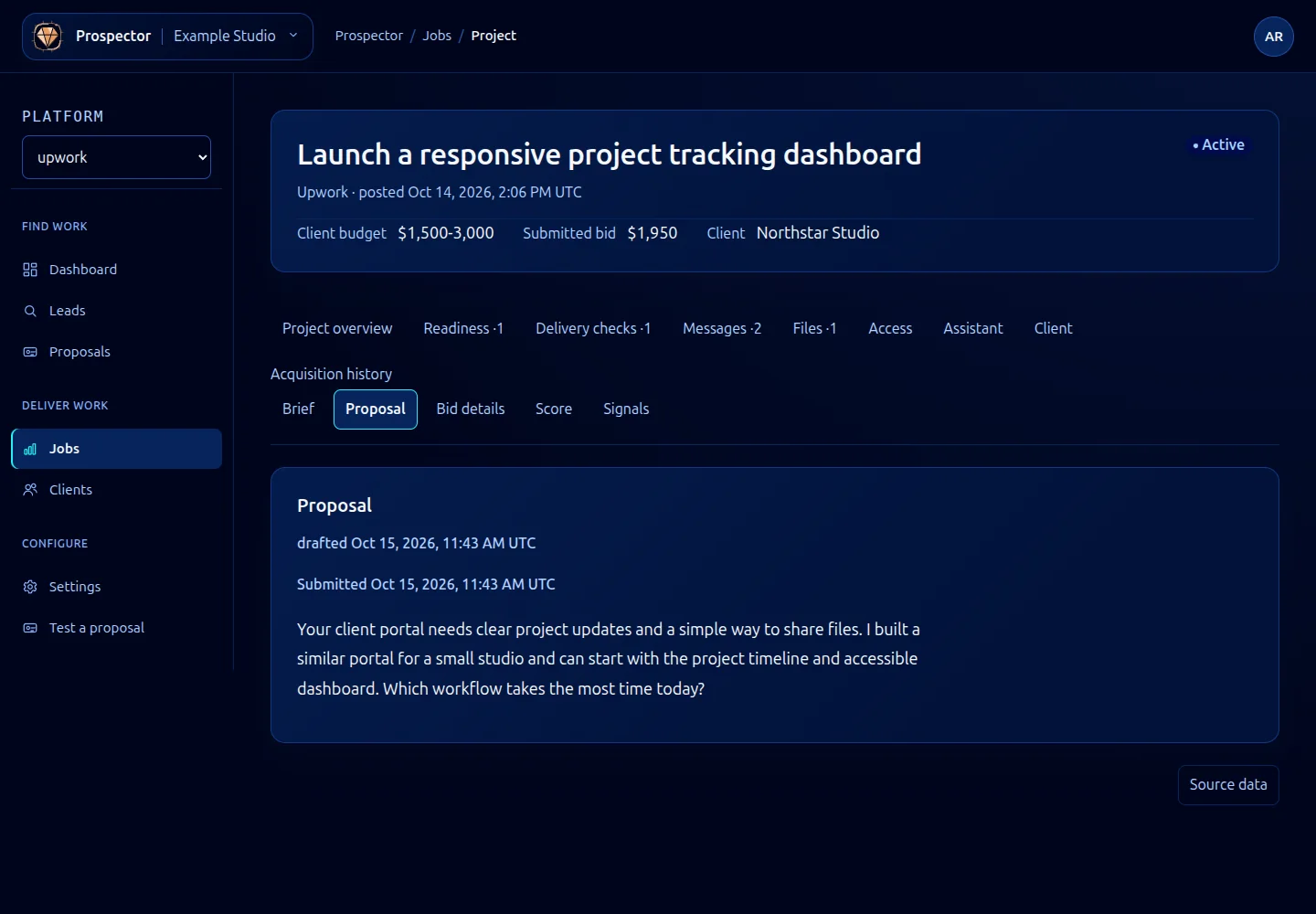
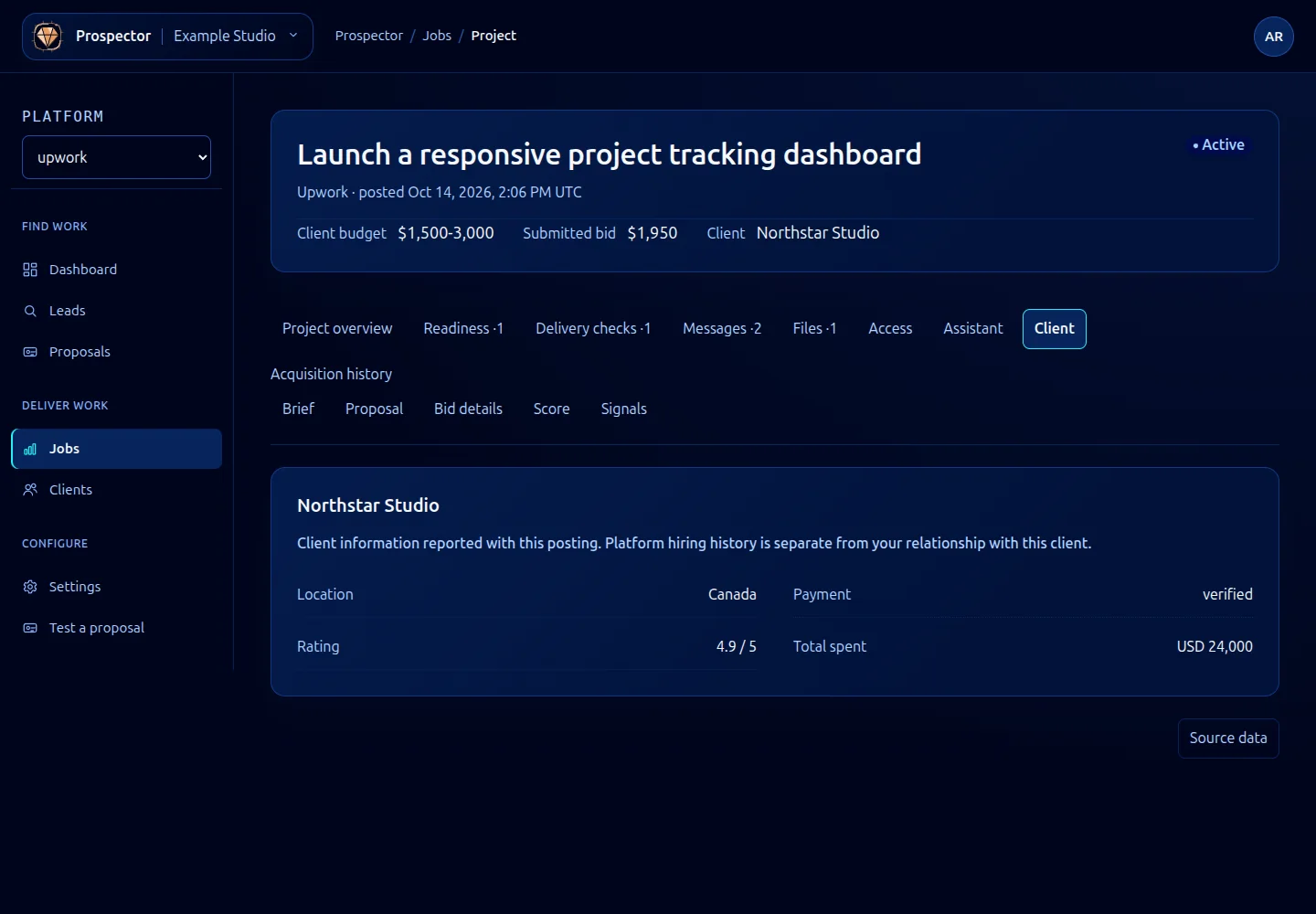
- Open Brief for the posting, Proposal for stored text, Score for the reasoning and Client for the buyer facts recorded with the lead.
- Use Source data when you need to inspect the original payload. Close it with Close source data. It may contain private posting data; avoid sharing it indiscriminately.
- Read the contextual actions after the relevant content. On a won job, Project overview shows readiness gaps and project actions before its history.
Actions depend on state. An inbox lead can be archived. An eligible record may offer Generate draft manually, which starts paid drafting and bypasses the normal qualification decision. Read the confirmation before proceeding; it does not submit the proposal. A draft can be reviewed and submitted, marked as submitted elsewhere, or rejected. A sent proposal can be marked won or lost. Won work uses delivery actions.
Re-score runs another assessment and can use AI processing. Do it when you want a new evaluation, not merely to view the existing result. Before approving a draft, follow Review and submit proposals. Before recording a win, use Jobs and delivery.
The workspace can also contain Messages, Files, Assistant, Signals, and, for won work, Project overview, Readiness, Delivery checks and Access. Their guides are in the delivery section of this documentation.
What it looks like
Open this screenshot at full size.
Open this screenshot at full size.
Open this screenshot at full size.
Read a recorded bid
Bid details shows the estimate saved with this lead. Current pricing settings may differ; changing a percentage in Settings does not recalculate this historical breakdown. The client budget, our bid and any provider cost are separate values. Provider cost is visible only to super-admins.