Navigation
guides
Connecting Upwork
Overview
Connecting Upwork to Prospector lets you scan Upwork job postings, submit proposals, and track contracts directly through the Prospector interface. The integration uses Upwork’s OAuth 2.0 API, and your credentials are stored in Vault rather than in local configuration files.
This guide assumes you already have a GhostStack account with Prospector enabled and a professional Upwork profile. If you have not set up Prospector yet, start with Getting Started.
Step 1: Create an Upwork API Key
Upwork requires an API key for third-party integrations. To create one:
- Log into your Upwork account and go to Settings > API Keys (or visit
https://www.upwork.com/developer/keys) - Click Create API Key
- Set the application name to something recognizable (e.g., “GhostStack Prospector”)
- Under permissions, select Read access for job search and Read/Write for proposals and contracts
- Save the key. You will receive a Client ID and Client Secret.
Keep these values ready. You will enter them in the next step.
Step 2: Authorize Prospector
Run the authorization flow through the CLI or dashboard:
ghoststack prospector connect upwork
This command opens your browser to Upwork’s OAuth consent screen. After you approve access, Upwork redirects back to GhostStack with an authorization code. Prospector exchanges this code for access and refresh tokens automatically.
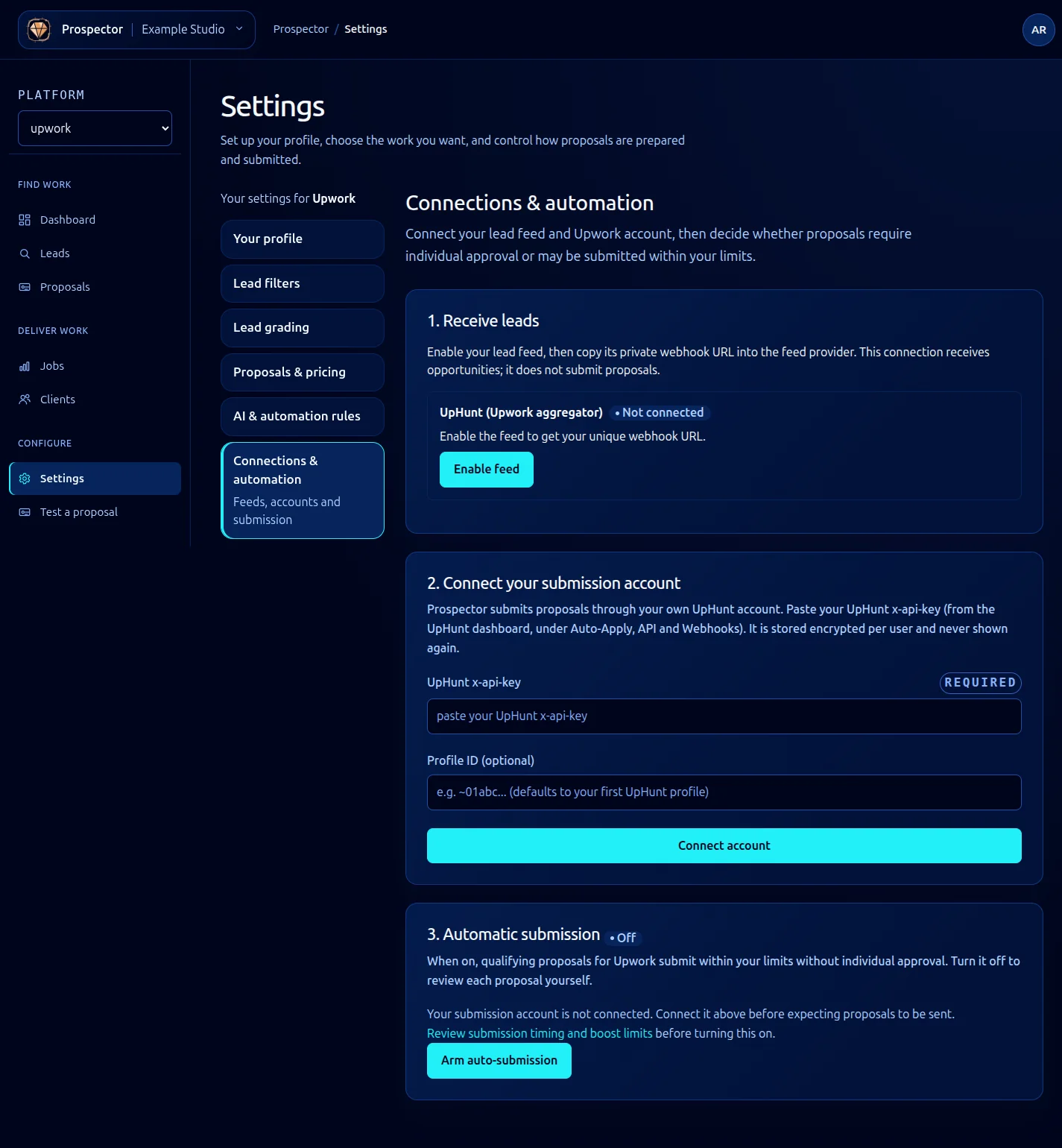
If you are connecting through the dashboard instead, go to Prospector > Platforms > Add Platform and select Upwork. The OAuth flow works the same way through the browser.
Step 3: Verify the Connection
After authorization completes, verify that Prospector can reach your Upwork account:
ghoststack prospector status --platform upwork
You should see output like:
Platform: Upwork
Status: Connected
Account: your-upwork-username
Scopes: job_search (read), proposals (read/write), contracts (read/write)
Token expires: 2026-05-24T12:00:00Z
Last sync: never
If the status shows disconnected or an error, check that your API key permissions match the required scopes listed above.
Step 4: Configure Scan Preferences
With the connection verified, configure how Prospector scans Upwork. These settings control which job categories to search, geographic filters, and scan frequency.
# ~/.ghoststack/prospector.yaml (upwork section)
platforms:
upwork:
categories:
- 'Web Development'
- 'Mobile Development'
job_type: ['fixed', 'hourly']
experience_level: ['intermediate', 'expert']
scan_interval: '30m'
max_results_per_scan: 50
The scan_interval controls how often Prospector checks for new postings. Setting it below 15 minutes is not recommended, as frequent API calls may trigger Upwork’s rate limits.
Token Refresh
Upwork access tokens expire after 24 hours. Prospector handles token refresh automatically using the stored refresh token. If a refresh fails (usually because you revoked access on Upwork’s side), Prospector sets the platform status to auth_expired and sends you a notification. Re-run ghoststack prospector connect upwork to re-authorize.
Refresh tokens themselves are long-lived but can expire if unused for 90 days. If you pause Prospector for an extended period, you may need to re-authorize when you resume.
Troubleshooting
“Insufficient scopes” error after connecting: Your API key does not have the required permissions. Delete the key on Upwork, create a new one with the correct scopes, and re-authorize.
Scan returns zero results: Check your category and experience level filters. Overly narrow filters combined with a niche skill profile can produce empty result sets. Try broadening categories temporarily to confirm the connection works.
Rate limit errors during scan: Reduce your scan_interval or max_results_per_scan. Upwork’s rate limits are per-API-key, so if you have other integrations using the same key, they share the limit.