Navigation
Prospector access. Public access is not open. This product is separate from initial Identity and Apparatus access.
Screenshots use fictional demonstration accounts. Your data and available actions may differ. Reviewed October 15, 2026.
Deliver work
Keep files with an engagement
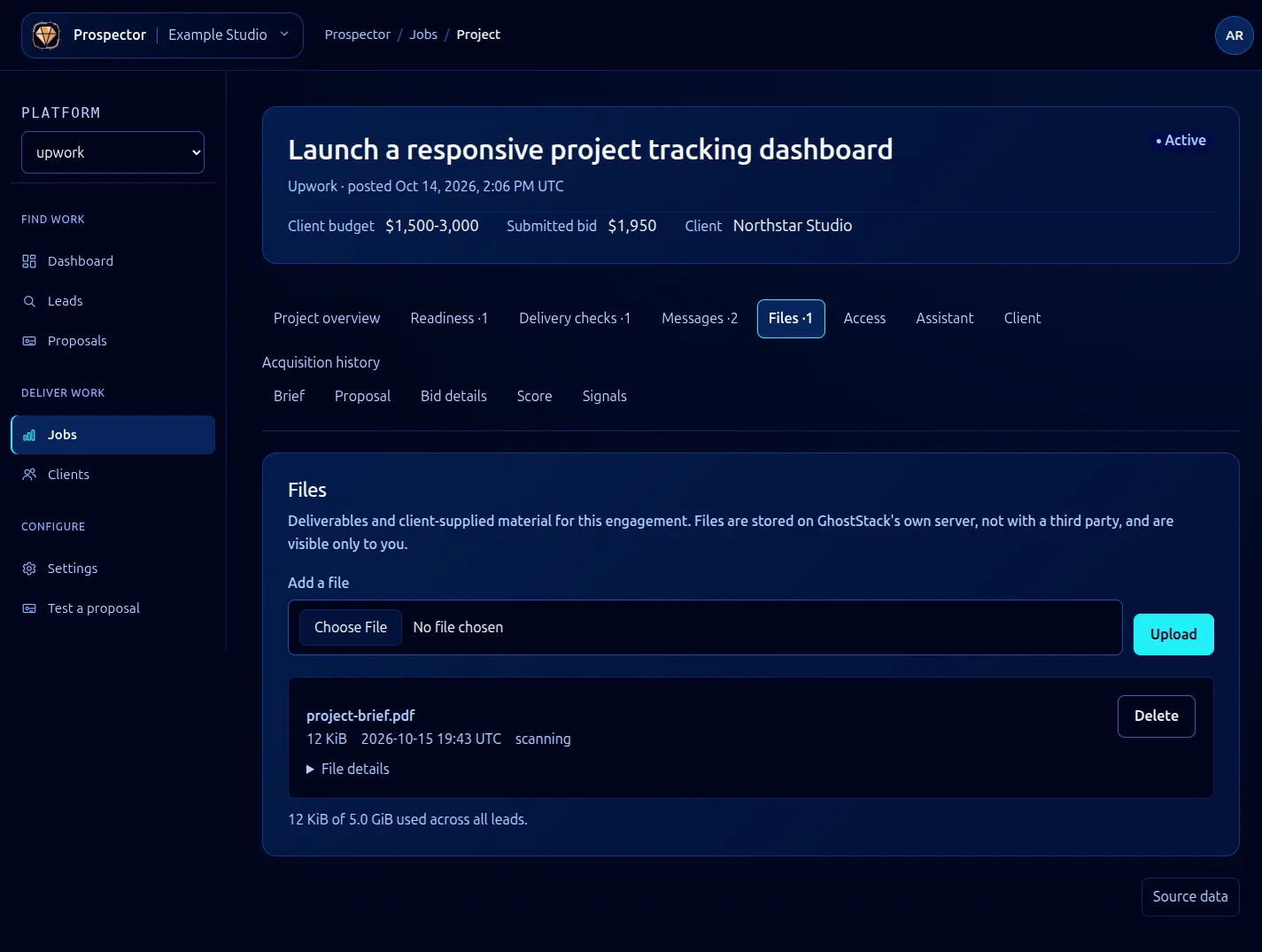
Open a lead or job and select Files. Use this area for client material and deliverables associated with the engagement.
- Choose the local document under Add a file.
- Select Upload and wait for the result.
- Check the file’s name, size and scanning status in the list. Expand its details if you need the MIME type or checksum.
- Use an available download link when the file is ready. A scanning or quarantined item may not be downloadable yet.
- Read the usage indicator before adding more material. The displayed allowance covers files across your leads, not just this record.
Delete removes a stored file; use it only for material you intend to remove. Check the selected filename before taking that action.
If an upload fails, keep the original file, read the error and check size, remaining storage and service availability. Do not keep uploading duplicates while an earlier upload is still processing. The example shows scanning metadata; it is not a downloadable demonstration PDF.
Use Project credentials for passwords and API keys instead of putting them in ordinary documents. File transfer requires the application’s storage service to be available.
What it looks like