Navigation
Prospector access. Public access is not open. This product is separate from initial Identity and Apparatus access.
Screenshots use fictional demonstration accounts. Your data and available actions may differ. Reviewed October 15, 2026.
Start here
Read the dashboard
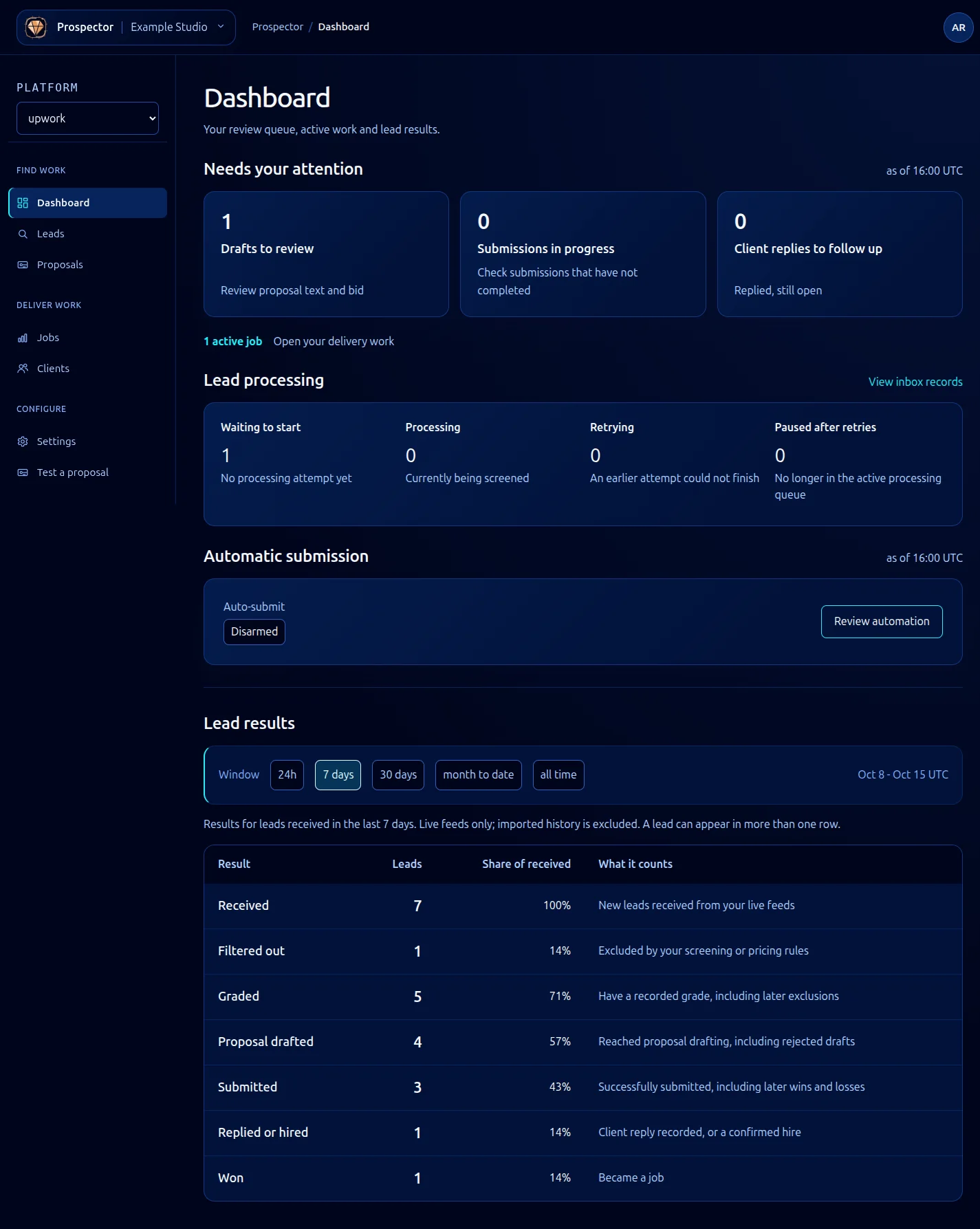
Open Dashboard in the sidebar. Start with the tasks at the top, then use the historical figures to understand the pipeline.
- Under Needs your attention, open Drafts to review, Submissions in progress or Client replies to follow up. The active-job link opens delivery work.
- Read Lead processing separately: Waiting to start, Processing, Retrying and Paused after retries describe different states. Paused records are no longer in the active processing queue; they are not waiting for screening.
- Under Automatic submission, choose Review automation to open its settings.
- Choose a Window such as 7 days or 30 days for Lead results. Read the date basis and counts for received, filtered, graded, drafted, submitted, replied or hired, and won leads.
- Compare each result with the received cohort. A lead can appear in several later outcomes, so these counts are not separate slices that add up to the received total. Imported archive records are excluded.
- Super-admins also see Spend and throughput. Its provider costs and submission/win totals use the date labels shown there. Ordinary users do not receive this section.
The top queues describe current work. Changing the results window does not turn those current queue counts into historical counts. A proposal can have been submitted in a different period from when its lead arrived, so totals in different sections need not match.
Bid value submitted is the value offered to clients, not AI provider cost or revenue received. If a figure seems unexpected, open the corresponding queue and check its active filters before drawing a conclusion.
What it looks like