Navigation
Prospector access. Public access is not open. This product is separate from initial Identity and Apparatus access.
Screenshots use fictional demonstration accounts. Your data and available actions may differ. Reviewed October 15, 2026.
Start here
Use the menus and choose a workspace
The top bar and the left sidebar serve different purposes. Identity supplies the tools your account can access. Prospector supplies the sections for the current app.
- Open the Prospector button at the top left to see the tool and workspace picker.
- Choose the workspace you intend to use. Check its name in the header after the change.
- Use Platform in the sidebar to check the selected marketplace. The released adapter is Upwork.
- Choose a section under Find work, Deliver work or Configure. On a phone, select Menu to open this sidebar, then Close menu to dismiss it.
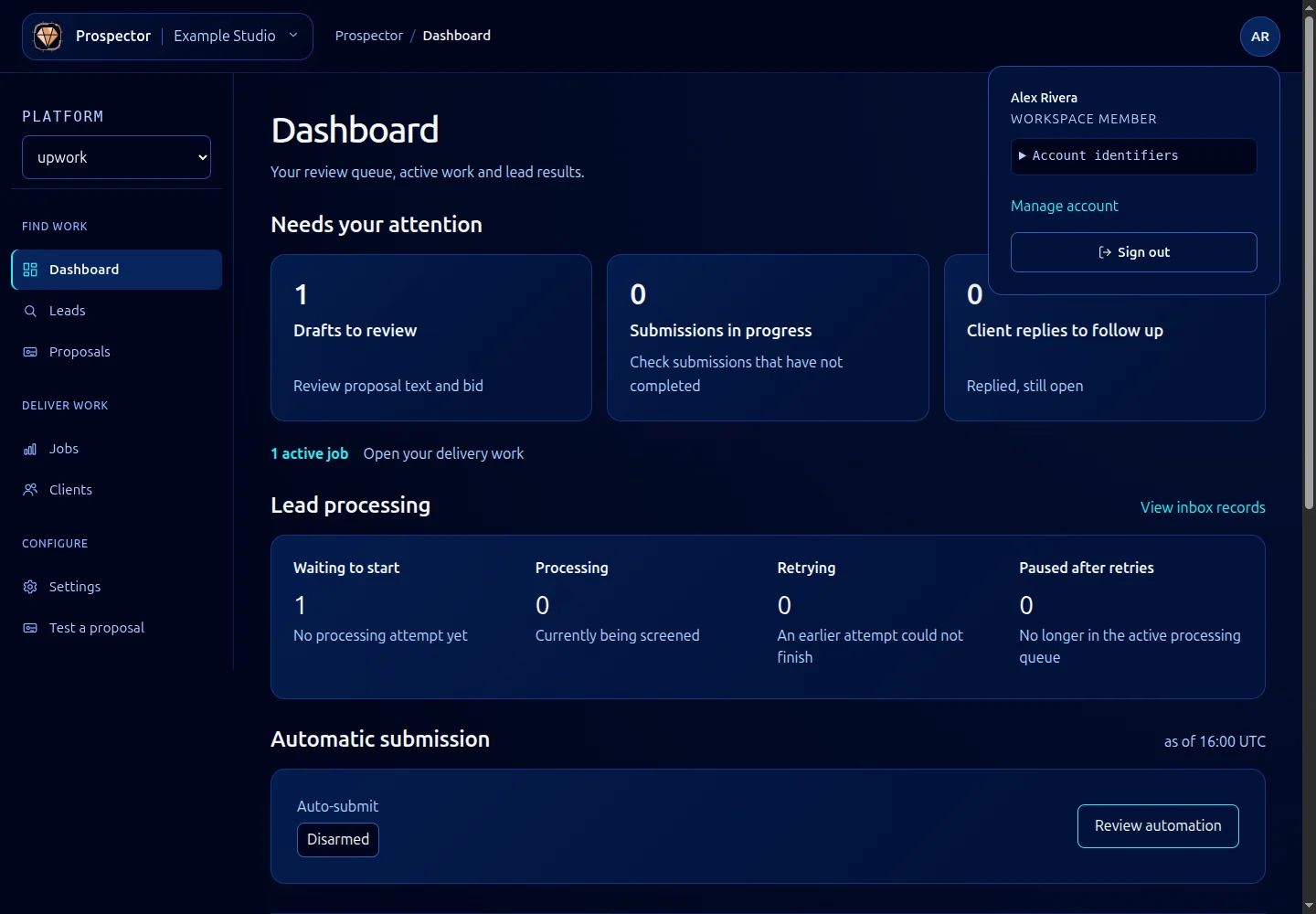
- Open your account button at the top right for account controls. Manage identity, sessions and security in Identity.
Within Settings, choose a section from the left-hand list on a wide screen or Settings section on a phone. Keyboard users can move between desktop settings tabs with Up/Down, Home and End. The URL fragment records the selected section, and browser Back returns to the previous one.
Within a lead or job, the opening tab depends on its stage. Active projects open Project overview, followed by delivery tabs. Acquisition history groups the earlier brief, proposal, bid and score. Actions appear with the relevant content. Source data is below the tab content.
The top-right initials use your Identity account name. The desktop sidebar and top bar stay in place while the main page scrolls.
If a tool is absent, confirm the account and workspace in Identity. A missing menu item is not fixed by changing Prospector filters. Workspace membership alone does not grant platform-operator permissions.
What it looks like
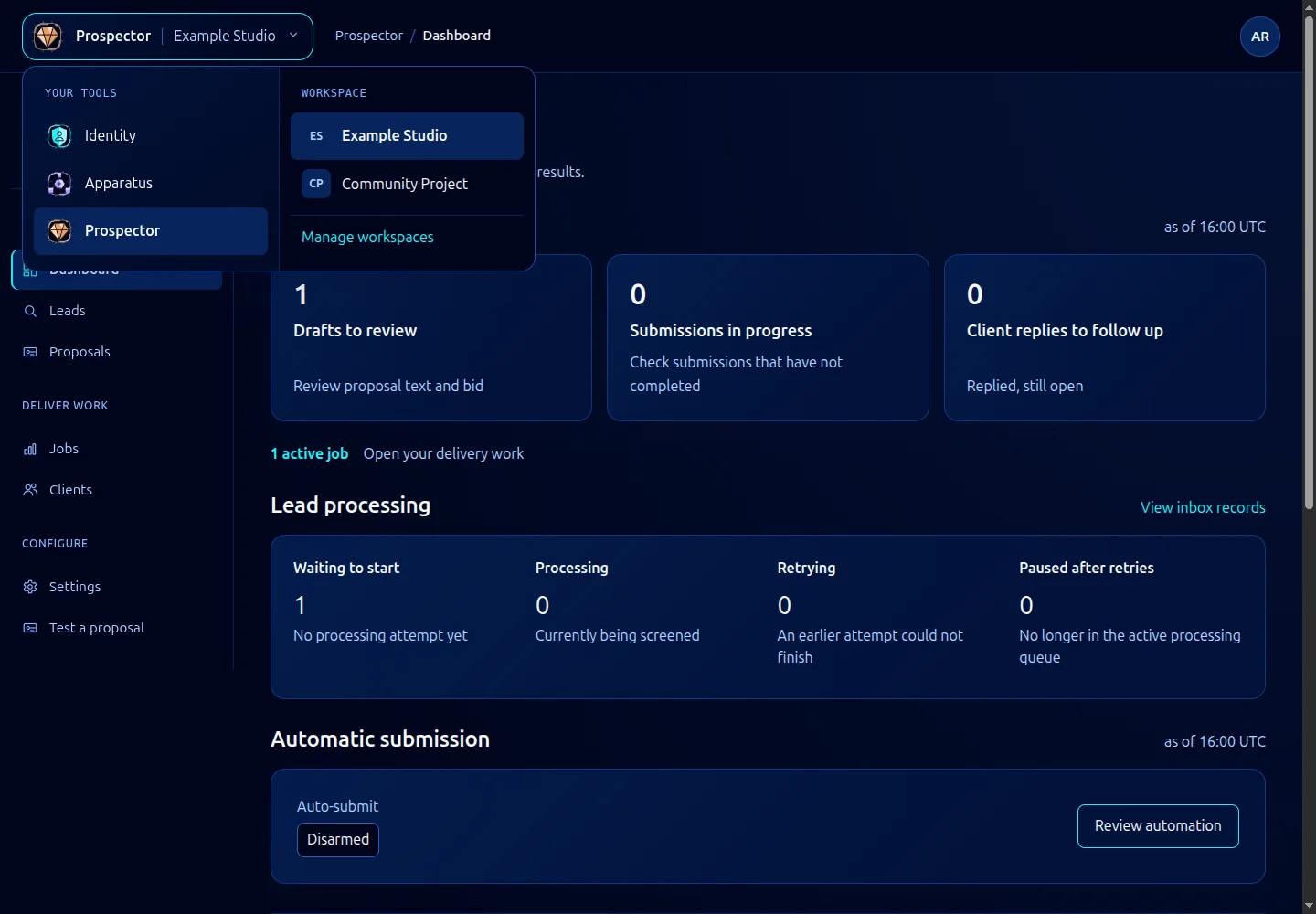
Open this screenshot at full size.
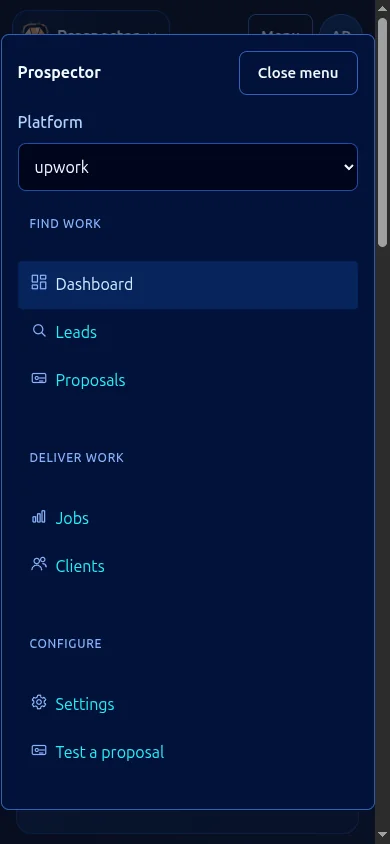
Open this screenshot at full size.