Navigation
Screenshots show the released Identity interface with fictional demonstration accounts. Reviewed October 15, 2026.
Workspaces
Find and switch workspaces
A workspace groups shared access and activity. Your account can belong to more than one workspace, with a different role in each.
Find your workspaces
- Open the top-left tool and workspace menu.
- Select Manage workspaces.
- Review the workspace names and your Role in each.
- The Active badge marks the workspace currently selected for your session.
- Select a workspace’s name to inspect its details.
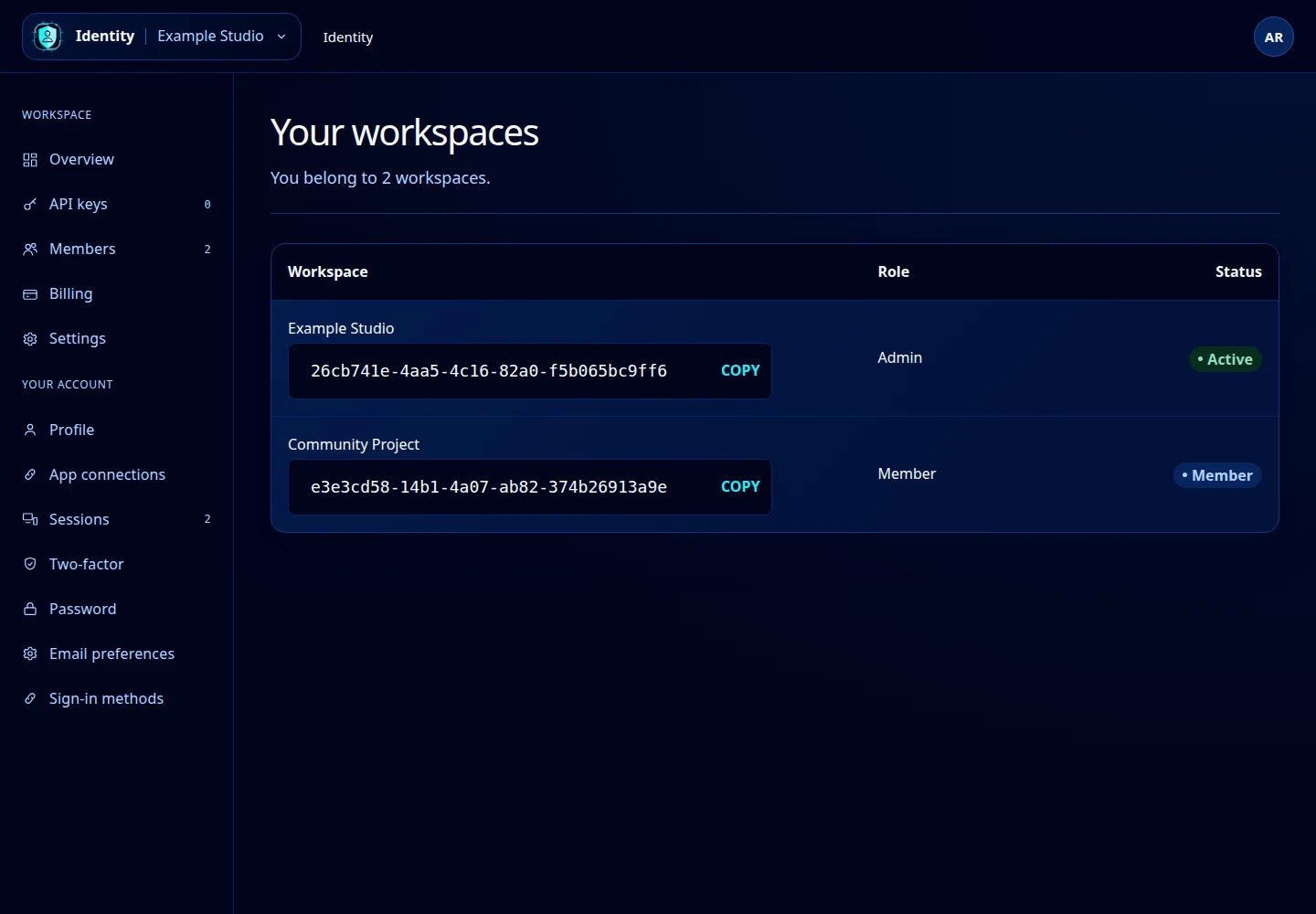
Open this screenshot at full size.
Switch the active workspace
Open the top-left menu and choose a workspace under Workspace. Check the name in the header before managing members, billing or API keys. Viewing a workspace’s detail page alone does not switch your session’s active workspace.
Read the workspace overview
The detail page shows its creation date, your role, member and pending-invitation counts, and recent activity. Edit settings and member/billing links appear only when your role permits them.
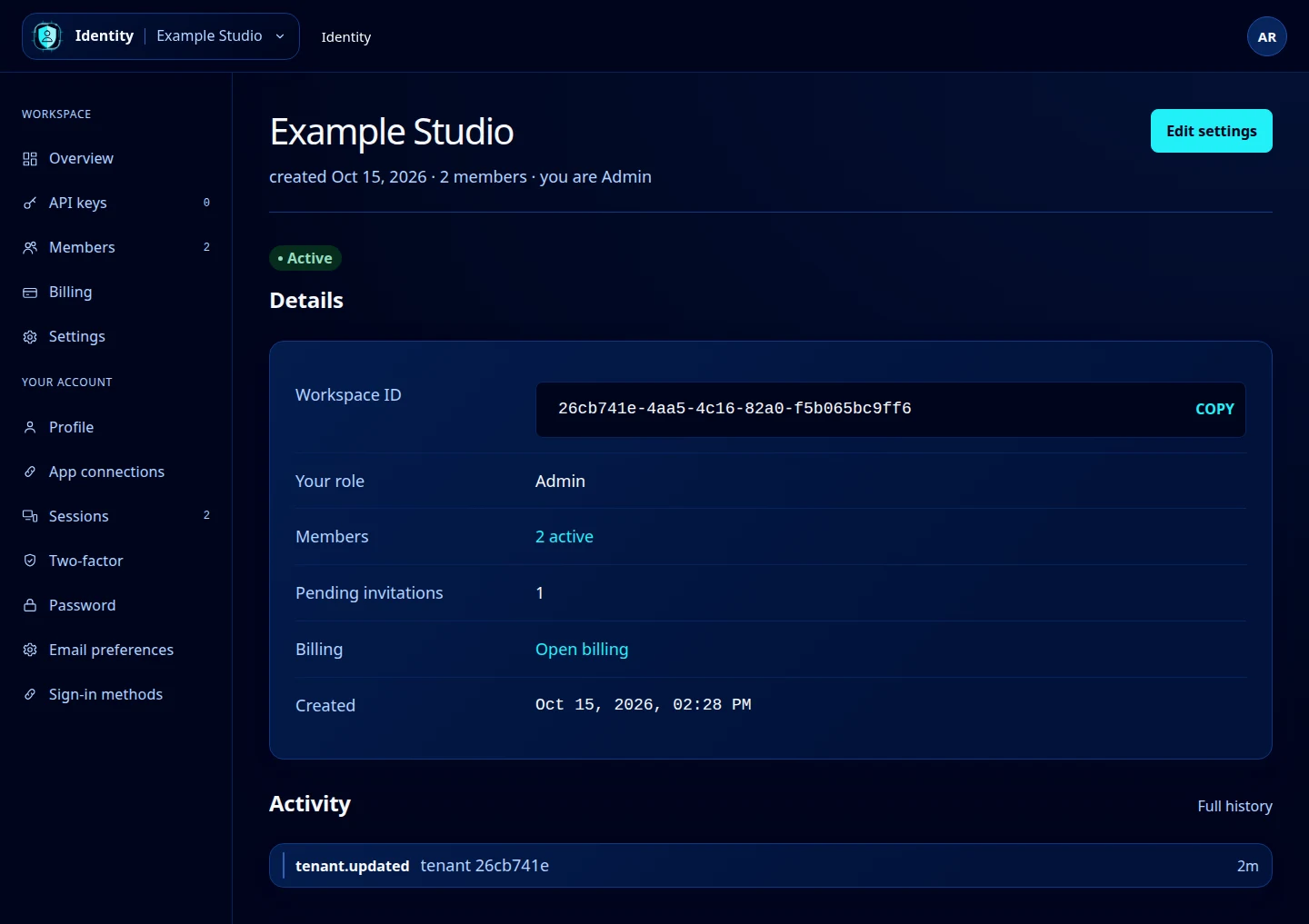
Open this screenshot at full size.
A workspace is missing
An invitation must be accepted before it becomes a membership. Check that you are signed in with the invited email and follow Accept an invitation. If your membership was removed, ask a workspace administrator to review it.
The current workspaces screen lists existing memberships; it does not offer a create-workspace button. Public account registration creates your initial workspace. These guides do not assume an unavailable create, leave or delete control.