Navigation
Screenshots show the released Identity interface with fictional demonstration accounts. Reviewed October 15, 2026.
Workspaces
Edit workspace settings
Required access: a workspace Admin. Choose the intended workspace, then select Settings in the sidebar or Edit settings from its overview.
Update workspace details
- Edit Workspace name to change the name members see.
- Set Contact email for operational notices about this workspace.
- Set Billing email for invoices and receipts.
- Select Save.
- Wait for Saved. and check the displayed values.
These changes apply to the workspace for all its members. They do not change your personal profile or sign-in address.
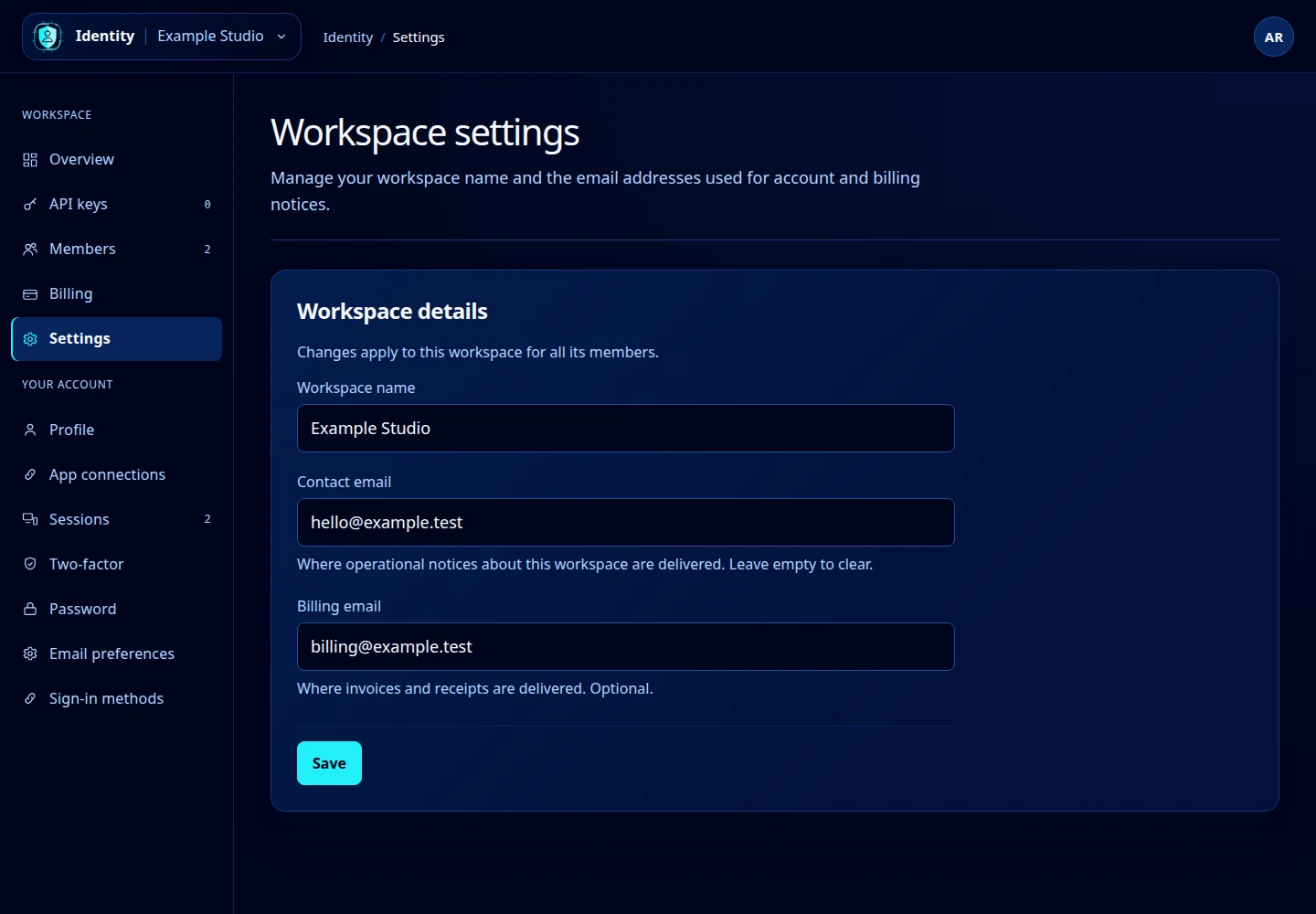
Open this screenshot at full size.
Optional addresses and validation
Contact and billing email fields are optional. Clear a field and save to remove its stored value. Use a valid address when supplying one. The workspace name is required and is limited to 100 characters.
No changes to save means the submitted values match the current settings. If the page has expired, reload and try again. If your permission changed while the page was open, ask another workspace administrator to make the change.
Workspace lifecycle
The current settings screen does not provide workspace deletion or a leave-workspace button. For a workspace closure or a membership change you cannot perform here, contact the workspace administrator or support.