Navigation
Screenshots show the released Identity interface with fictional demonstration accounts. Reviewed October 15, 2026.
Your account
Change your password
Before you start: you need an email/password sign-in method and your current password. If you forgot it, use account recovery.
Change the password
- Open Password in the sidebar, or Change password from Profile.
- Enter Current password.
- Enter New password, using at least 12 characters.
- Repeat it exactly in Confirm new password.
- Select Change password and wait for confirmation.
Other devices are signed out after a successful change. This device stays signed in. Update any password manager entry to avoid trying the old password next time.
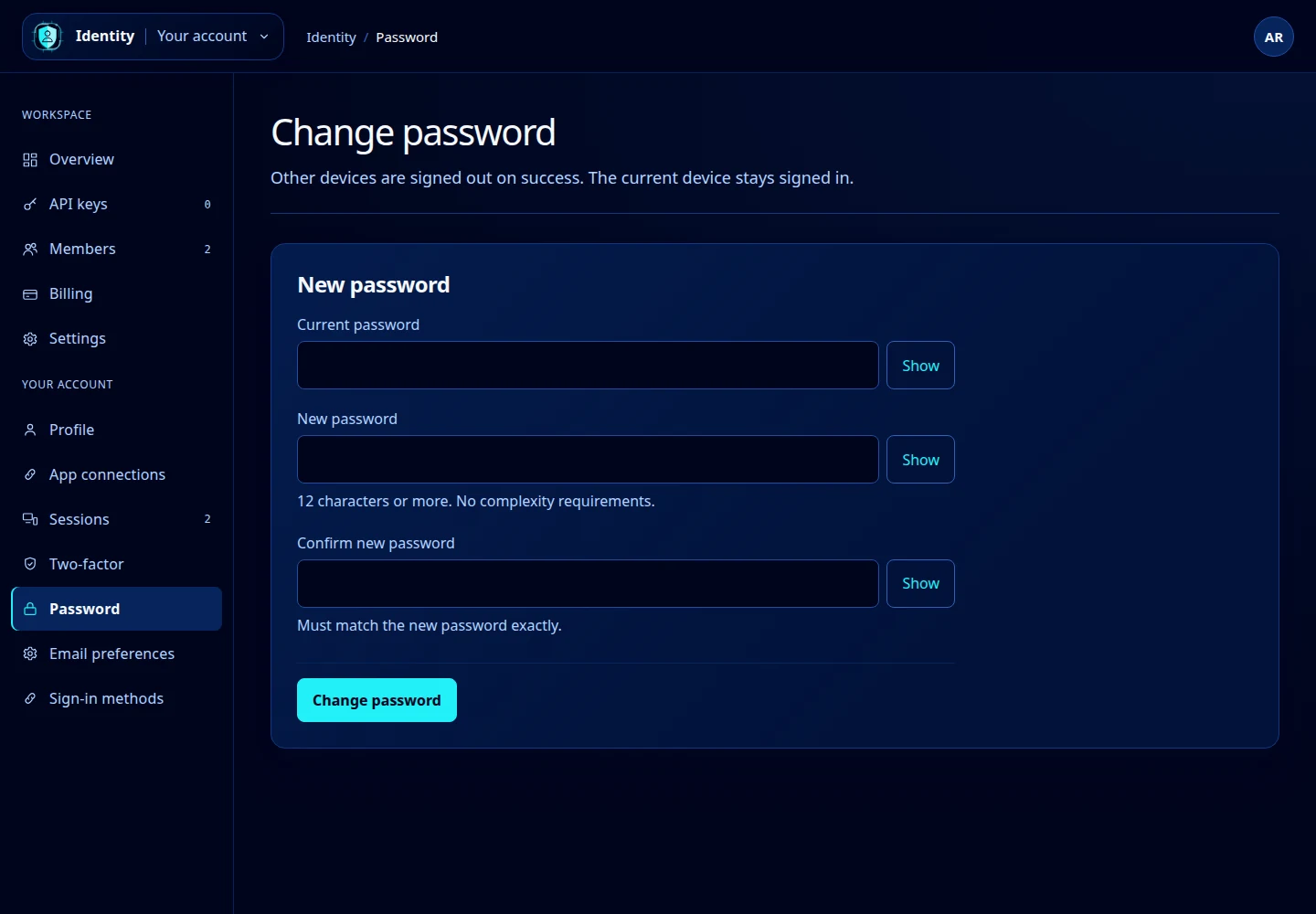
Open this screenshot at full size.
If it fails
Check the current password and matching confirmation. The form has Show controls to help check typing. If the page has expired, reload it before trying again. A connection error does not confirm a successful change; check the result before repeating the action.
Google/GitHub-only accounts do not have this password-change form. Manage the provider’s password through that provider.