Navigation
Screenshots show the released Identity interface with fictional demonstration accounts. Reviewed October 15, 2026.
Your account
Create and revoke API keys
Before you start: select the intended workspace and obtain the exact required scopes from your integration’s setup instructions. Your workspace role and product access must permit those scopes. Apparatus uses browser sign-in; an Identity API key is not its pairing method.
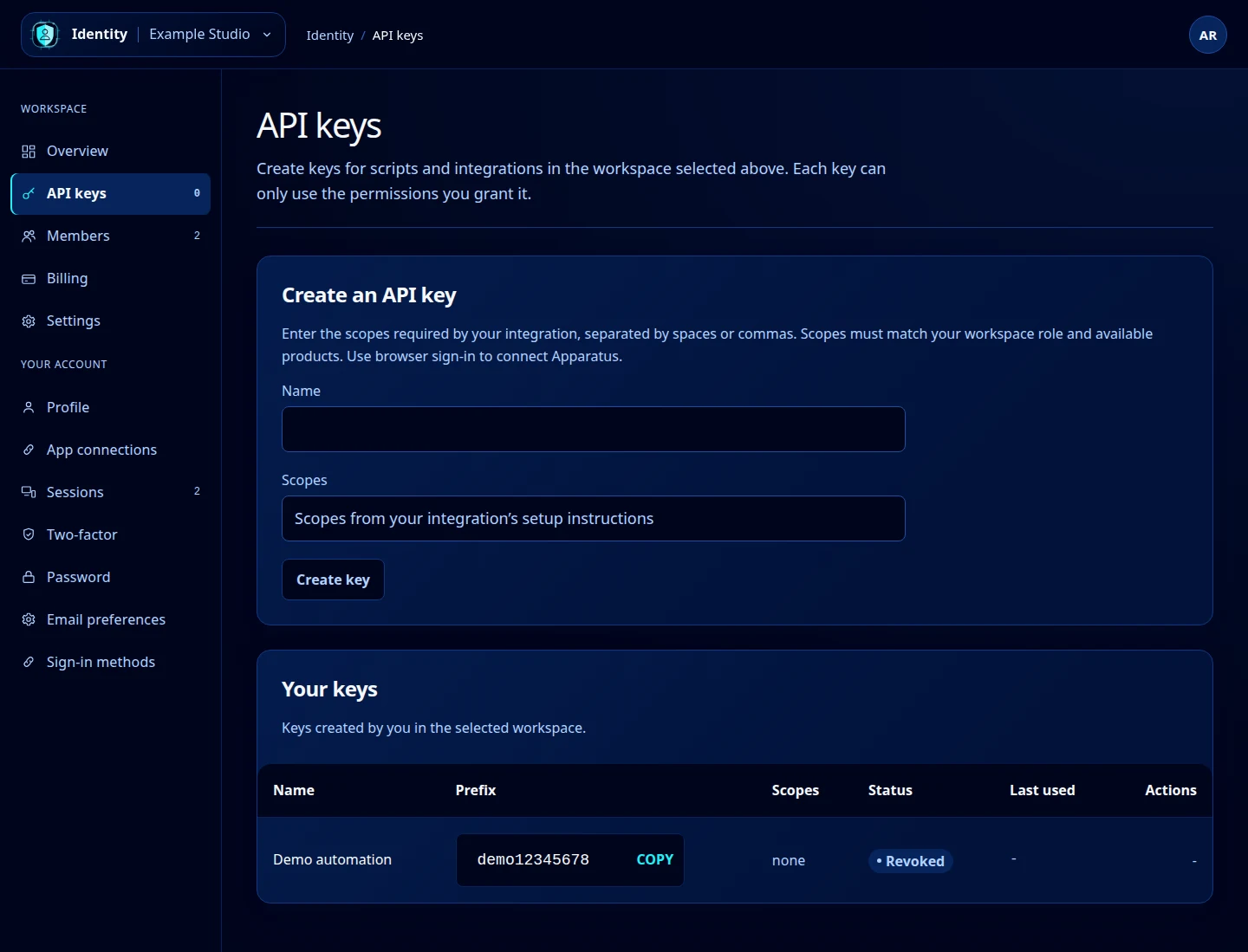
Create a key
- Choose API keys in the sidebar.
- Enter a descriptive Name, such as the integration and its purpose.
- Enter Scopes, separated by spaces or commas, using only the permissions the integration needs.
- Select Create key.
- Copy the full value from New API key into your integration’s secure credential storage.
- Select Dismiss after storing it.
The full key is shown only at creation. After leaving the page, Identity can show only its prefix. A prefix identifies a key; it cannot authenticate an integration.
Open this screenshot at full size.
Review or revoke a key
Under Your keys, review its name, prefix, scopes, status and last-used date. Only your keys in the selected workspace appear here. Select Revoke on an active key to stop it working. Any integration using that key will need a replacement.
If you lost the full value, create a replacement and update the integration, then revoke the old key. There is no reveal action for an existing key.
Troubleshooting
If Identity asks you to choose a workspace, use the top-left menu. If scope creation is refused, check the required scopes and your role with a workspace administrator. Creating a key cannot grant access to a product your account cannot use.