Navigation
Screenshots show the released Identity interface with fictional demonstration accounts. Reviewed October 15, 2026.
Start here
Understand the menus
Top left: tool and workspace
- Select the Identity button at the top left.
- Under Your tools, choose an available tool. Identity controls which tools your account can access.
- Under Workspace, choose the workspace you want to use.
- Select Manage workspaces to see your memberships and their roles.
The active workspace determines which workspace data and API keys you manage. Opening a workspace’s details is different from selecting it as the active workspace; use the top-left switcher when changing context.
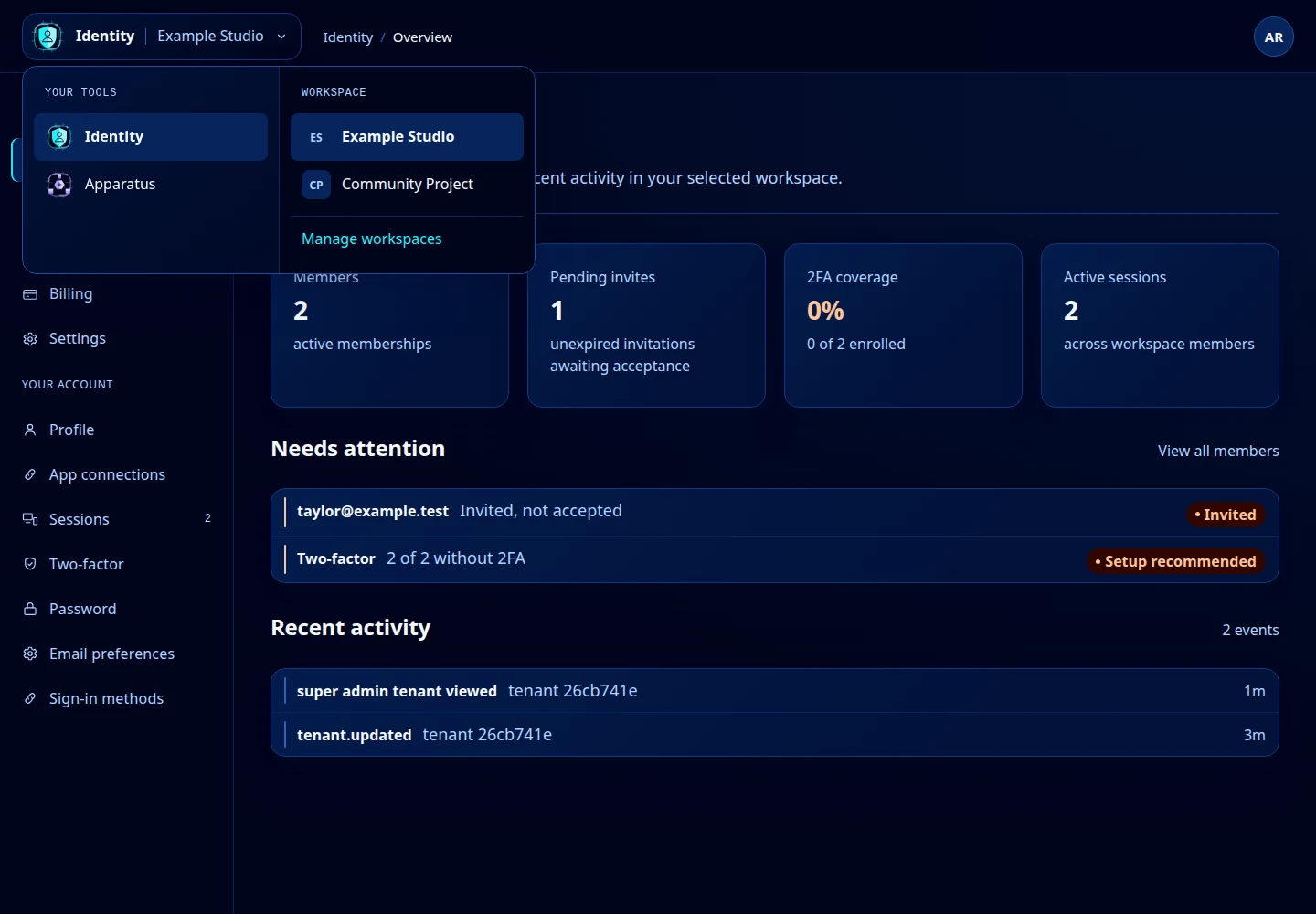
Open this screenshot at full size.
Left side: controls for the current tool
In Identity, Workspace groups Overview, API keys and any member, billing or settings controls your role allows. Your account contains your profile, connections, sessions, two-factor, password, email preferences and sign-in methods.
Another tool can provide a different sidebar. For example, opening Apparatus takes you to its own workflow. It does not turn Identity into the AI client setup screen.
Top right: your account
Open your avatar to find Manage account and Sign out. Account identifiers contains identifiers useful when support asks for them. These identifiers are different from passwords and API keys.
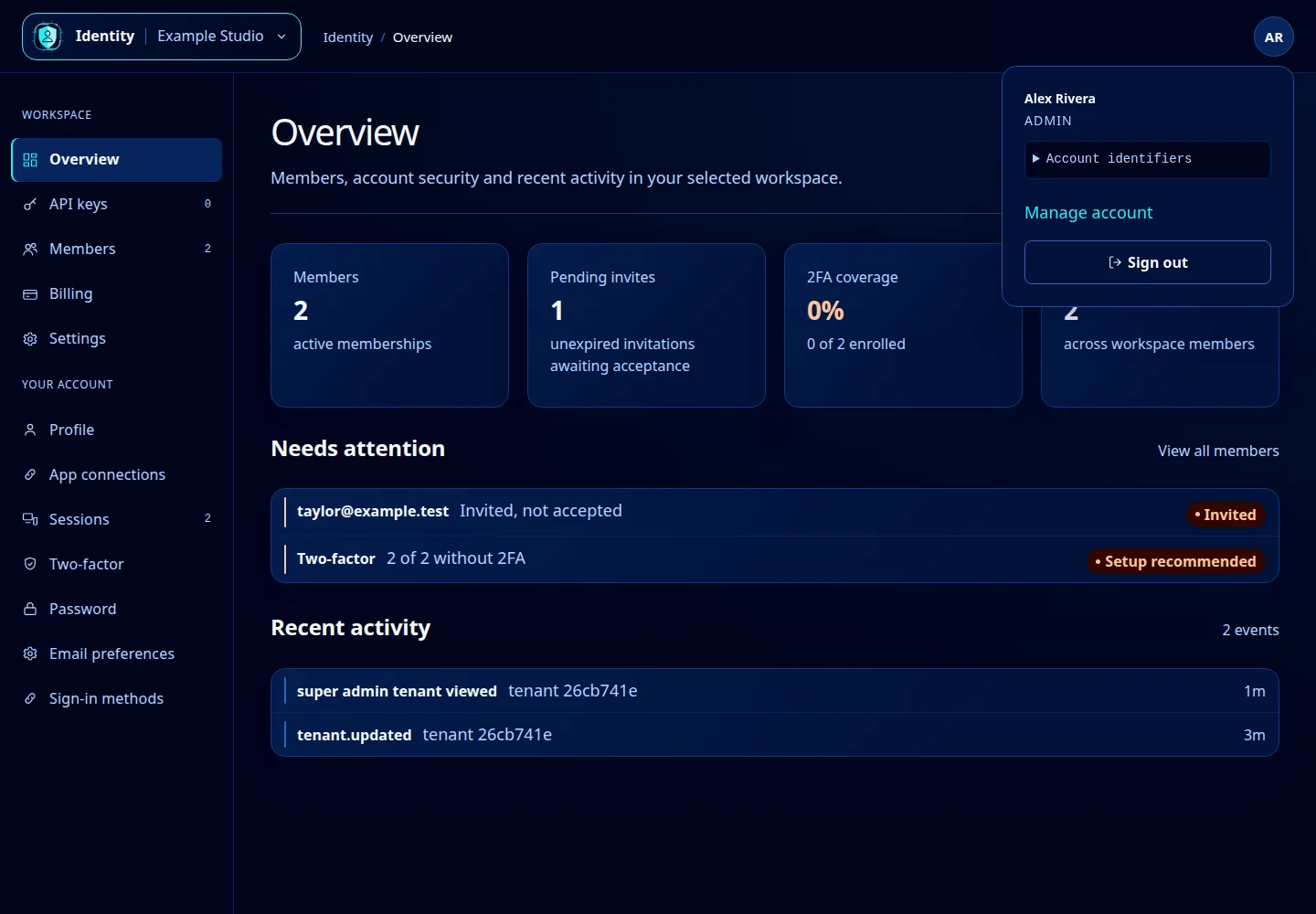
Open this screenshot at full size.
On a phone
Use the navigation menu button to reveal the sidebar. Close it after choosing a screen. Wide data tables can scroll horizontally inside their own frame.
If a control is missing, check your selected workspace and role. A workspace Admin label does not mean you are a platform administrator.