Navigation
Screenshots show the released Identity interface with fictional demonstration accounts. Reviewed October 15, 2026.
Workspaces
Invite and manage members
Required access: a workspace Admin for sending or revoking invitations and removing members. Select the intended workspace first, then open Members.
Send an invitation
- In Invite a member, enter the teammate’s Email.
- Choose Role: Admin, Member or Viewer. See Workspace roles.
- Select Send invite.
- Check Pending invitations for the entry.
The email contains a single-use link that expires in seven days. A pending invitation is not yet an active membership.
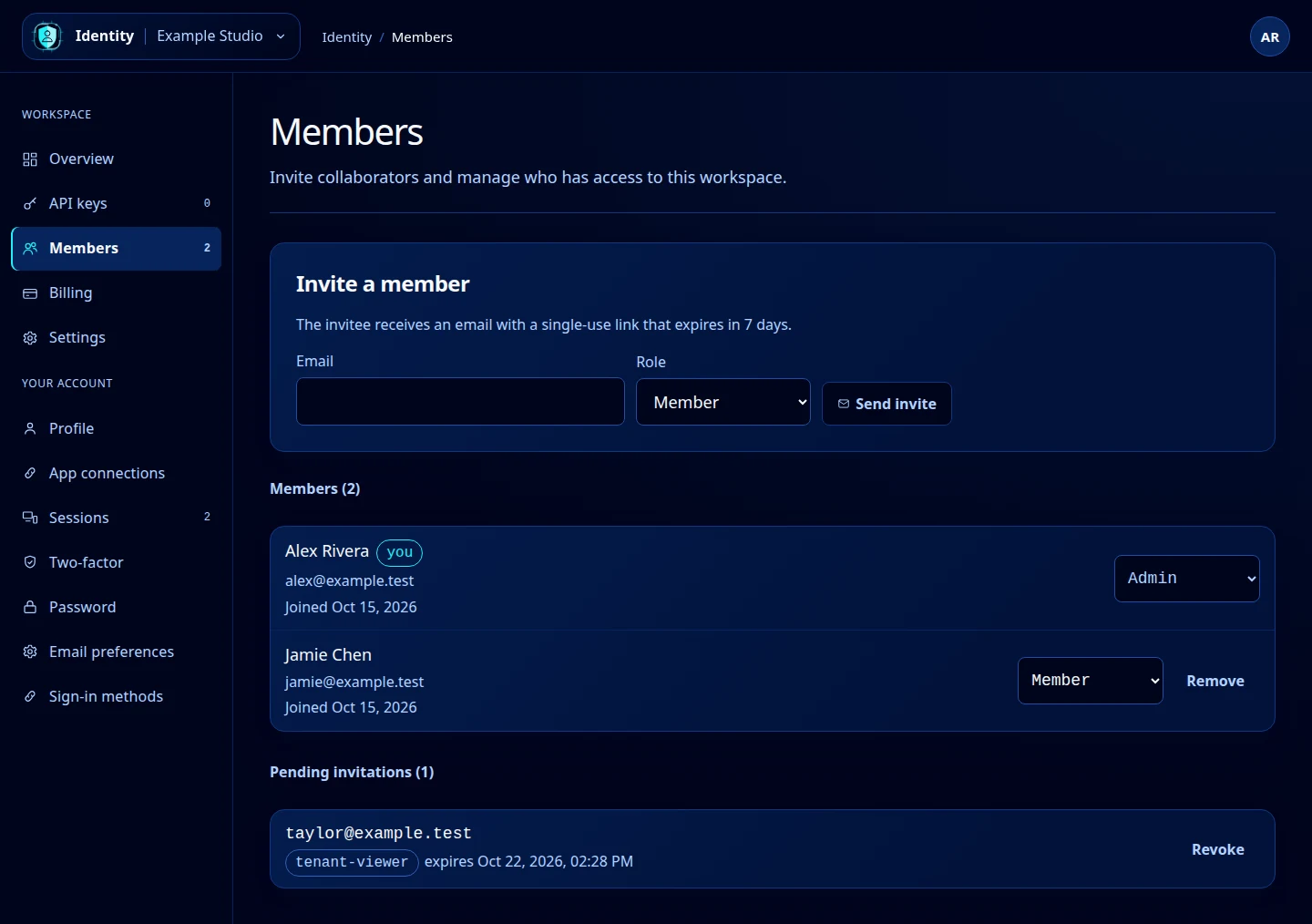
Open this screenshot at full size.
Accept an invitation
- Open the invitation email and follow its link.
- Sign in to the GhostStack account with the invited email address.
- On Accept invitation, select Accept invitation.
- After acceptance, select the workspace in the top-left menu.
If you do not yet have an account, register and verify that same address first, then reopen the original invitation. The invitation screen does not create an account for you.
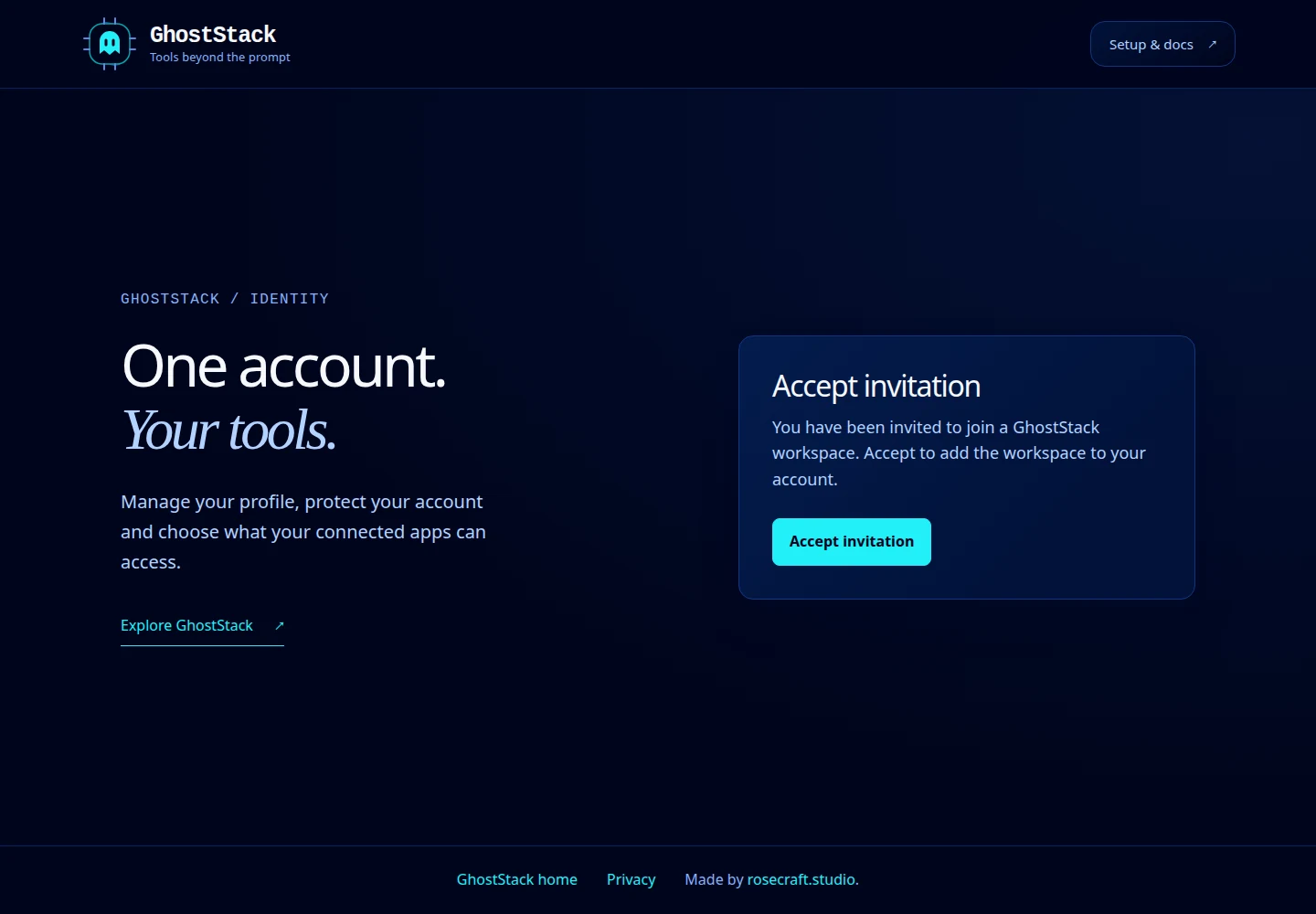
Open this screenshot at full size.
Revoke or replace an invitation
Under Pending invitations, select Revoke on the invitation you no longer want to allow. If a link expired, send a new invitation. Ask the recipient to use the new message. A revoked or consumed link cannot be accepted again.
Remove a member
Find the person under Members, select Remove, and confirm the browser prompt. This removes their workspace membership, not their entire GhostStack account. You cannot remove yourself here, and Identity protects the last workspace administrator from removal.
For access changes that retain membership, use the role selector.