Navigation
Screenshots show the released Identity interface with fictional demonstration accounts. Reviewed October 15, 2026.
Platform administration
Inspect platform workspaces
Required access: platform administration.
Find a workspace
- Choose Workspaces in the Operator sidebar.
- Enter all or part of its name in Name.
- Optionally check Has a current subscription.
- Select Filter.
- Open the workspace’s name in the results. Use Previous/Next if needed.
The list shows name, first product when recorded, member count, current subscriptions and creation date. A missing first product is valid for a platform account; it is not itself an error.
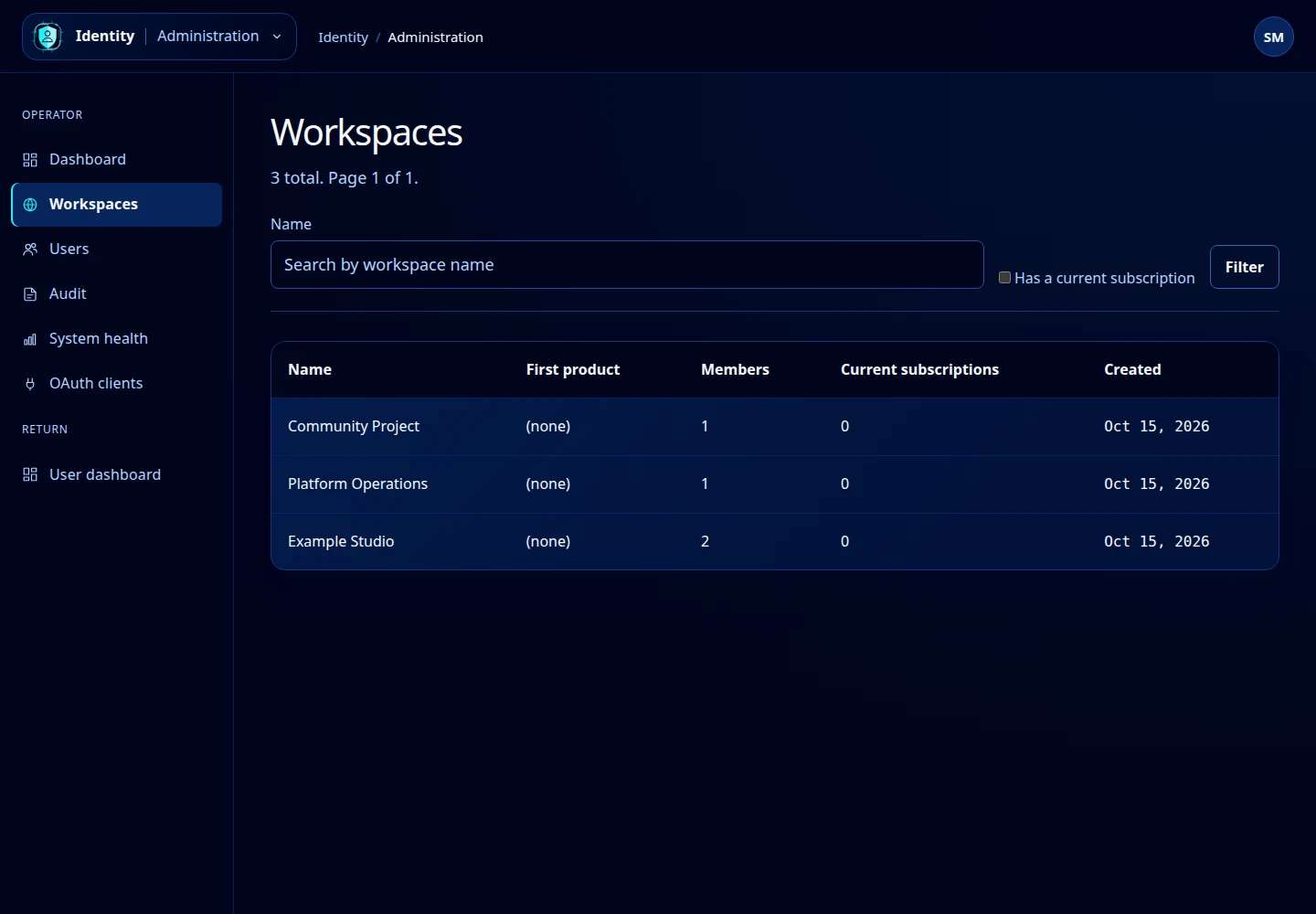
Open this screenshot at full size.
Inspect details
Review the workspace’s contact and billing addresses, Stripe-customer status, active-member count and subscription count. The lower sections show memberships, subscriptions and recent activity.
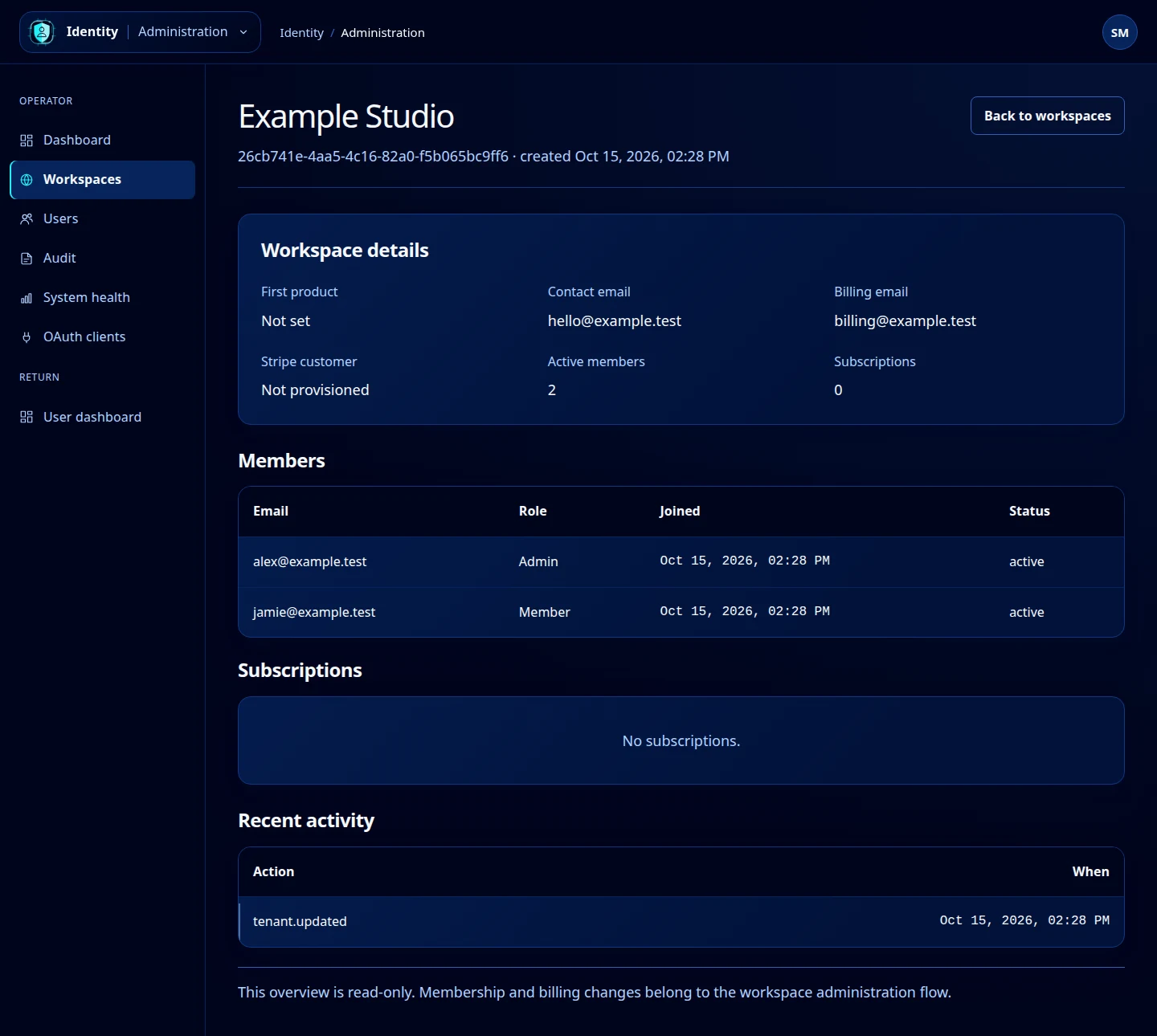
Open this screenshot at full size.
Make changes in the right place
This overview is read-only. It does not provide a member-role editor, subscription-change button or delete-workspace action. Use the authorized workspace membership, billing and settings flows for changes.
Use Back to workspaces to return to the list. For a specific event investigation, continue to the Audit log using the relevant workspace or resource identifier.