Navigation
Screenshots show the released Identity interface with fictional demonstration accounts. Reviewed October 15, 2026.
Platform administration
Use platform administration
Required access: the platform super-admin role, enrolled two-factor authentication and a recent successful two-factor verification. Workspace Admin access alone is insufficient.
Open administration
- Sign in with your platform-administrator account.
- Open Administration.
- If Identity asks you to enroll an authenticator, complete two-factor setup.
- If it asks for fresh verification, enter an authenticator or backup code and continue.
- Confirm that the sidebar shows the Operator section.
A missing platform role cannot be solved by repeatedly verifying a code. Ask the platform owner to review the account’s authorization.
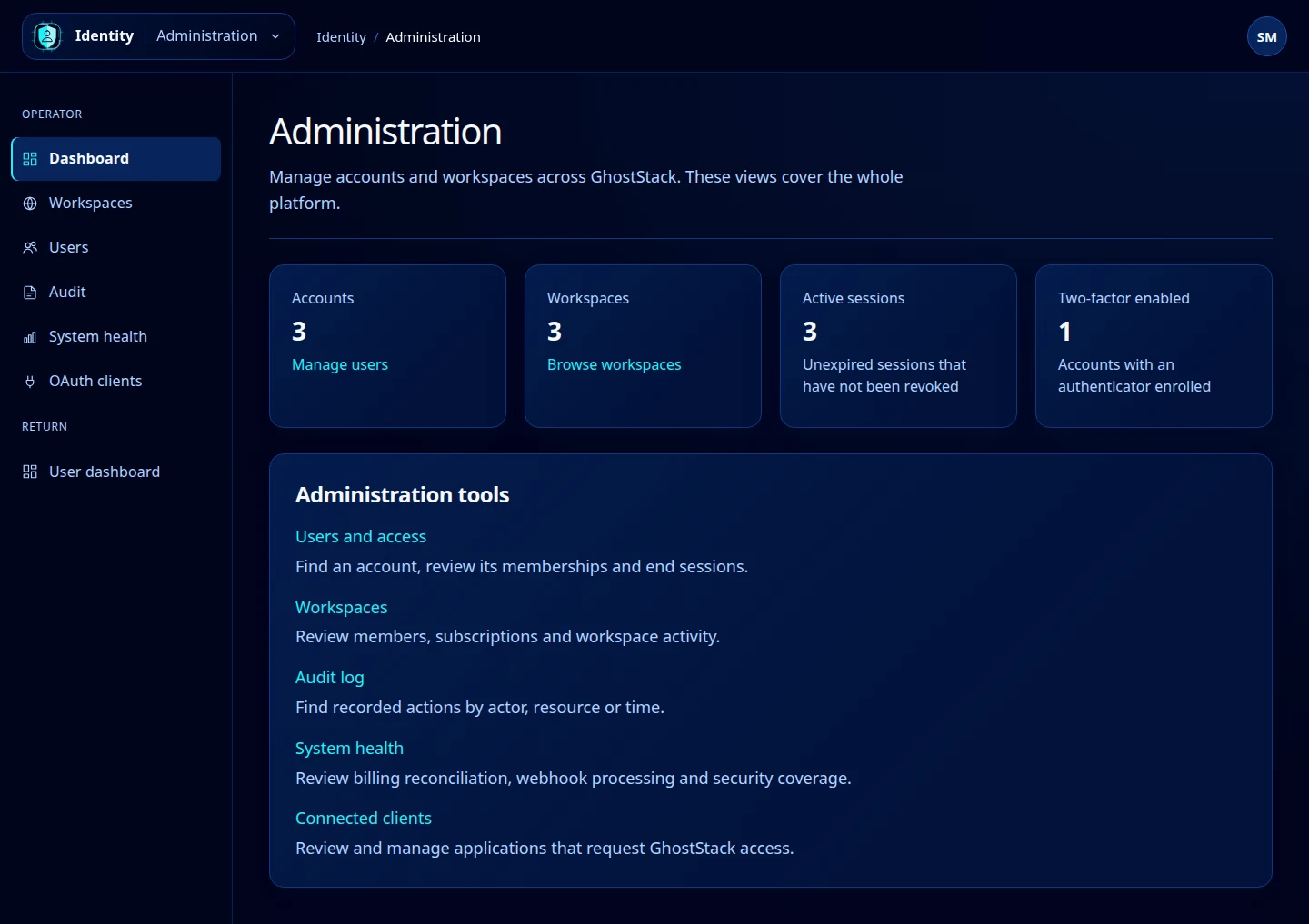
Open this screenshot at full size.
Choose an administration tool
- Users: find accounts, inspect memberships and end sessions.
- Workspaces: inspect workspace details, members, subscriptions and activity.
- Audit: filter recorded actions and export matching events.
- System health: inspect billing processing and two-factor coverage.
- OAuth clients: manage application trust and revocation.
The dashboard counts describe the whole platform. They are different from the workspace-scoped Overview shown to ordinary users. Select User dashboard in the sidebar to return to the account/workspace interface.
Keep the scope clear
These pages expose information across workspaces. Confirm the target account or workspace before an action. Platform administration does not make every page editable: the workspace detail screen is explicitly read-only, and the user detail screen does not expose role assignment, account deletion or impersonation-start controls.