Navigation
Screenshots show the released Identity interface with fictional demonstration accounts. Reviewed October 15, 2026.
Platform administration
Find users and end their sessions
Required access: platform administration, including recent two-factor verification.
Find an account
- Choose Users in the Operator sidebar.
- Enter an email or part of an email in Email search.
- Optionally select a Two-factor authentication status: Any status, Enabled or Not enabled.
- Select Apply filters. Use Clear search to remove the email search.
- Open the matching email address. Use Previous/Next when results span multiple pages.
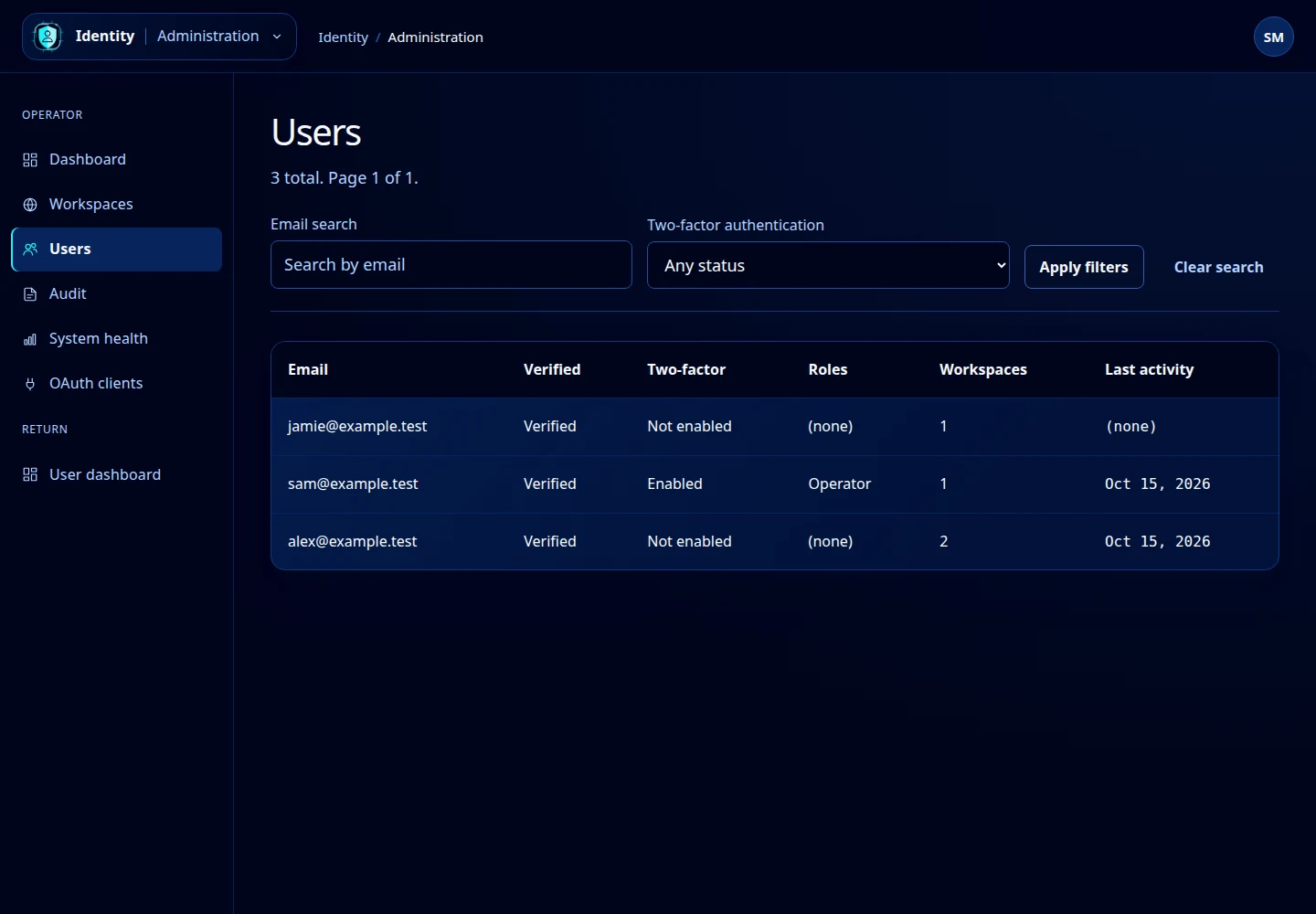
Open this screenshot at full size.
Read user details
The detail page shows User ID, display name, active workspace count, email verification, two-factor status, global roles and sign-in methods. Review the membership table to distinguish active memberships from ones the user has left.
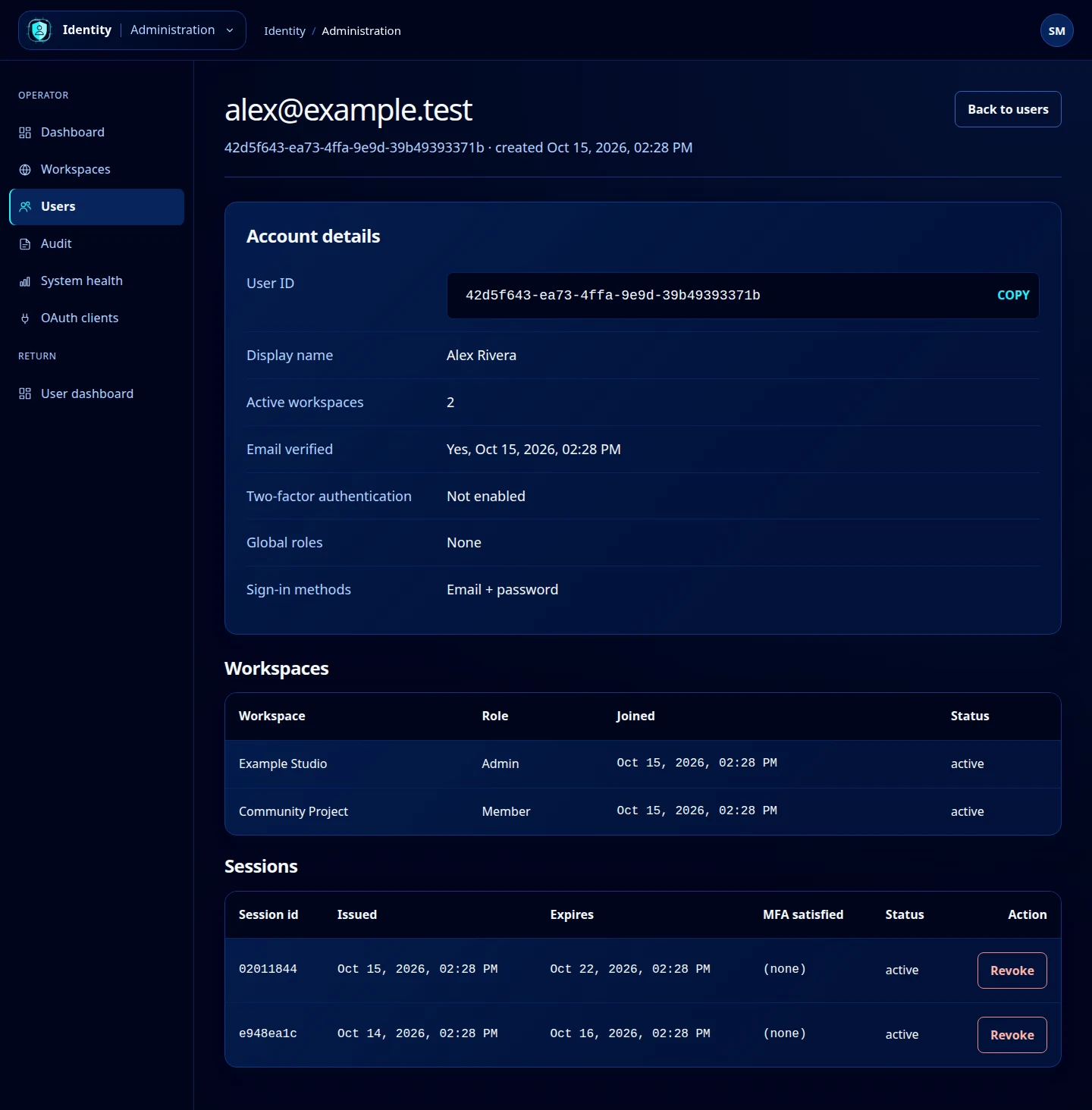
Open this screenshot at full size.
End a user’s session
- Under Sessions, identify the relevant session using its shortened identifier, dates and status.
- Select Revoke on an active session. The action applies directly.
- Check the updated session status.
A revoked session can no longer be used; the account must authenticate again. Revocation does not delete the account or remove its workspace memberships. This page does not display a user’s password or full API keys.
Select Back to users to return to the list. If you need to change workspace membership, use that workspace’s authorized management flow; this inspection screen does not provide a membership editor.