Navigation
Screenshots show the released Identity interface with fictional demonstration accounts. Reviewed October 15, 2026.
Start here
Create your account
Before you start: use an email address whose inbox you can open. Public registration includes Identity and Apparatus; it does not unlock every product in the suite.
1. Enter your email
Open Create an account, enter your Email, then select Continue with email.
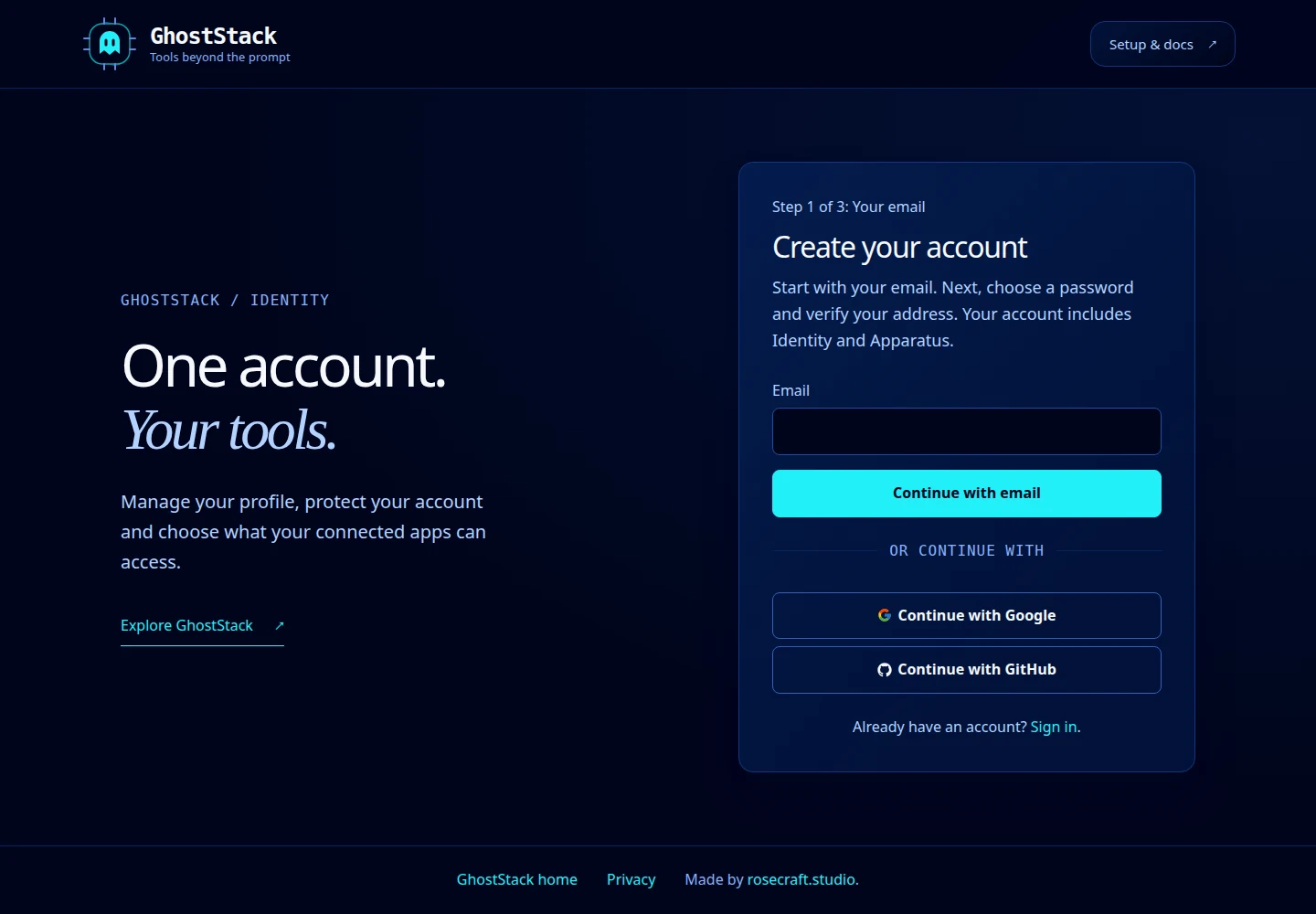
Open this screenshot at full size.
2. Choose a password
On Create your password, check the email address and enter a password of at least 12 characters. Review the product-news preference, then select Create account. Use the Show control if you need to check what you typed, then hide it again before sharing your screen.
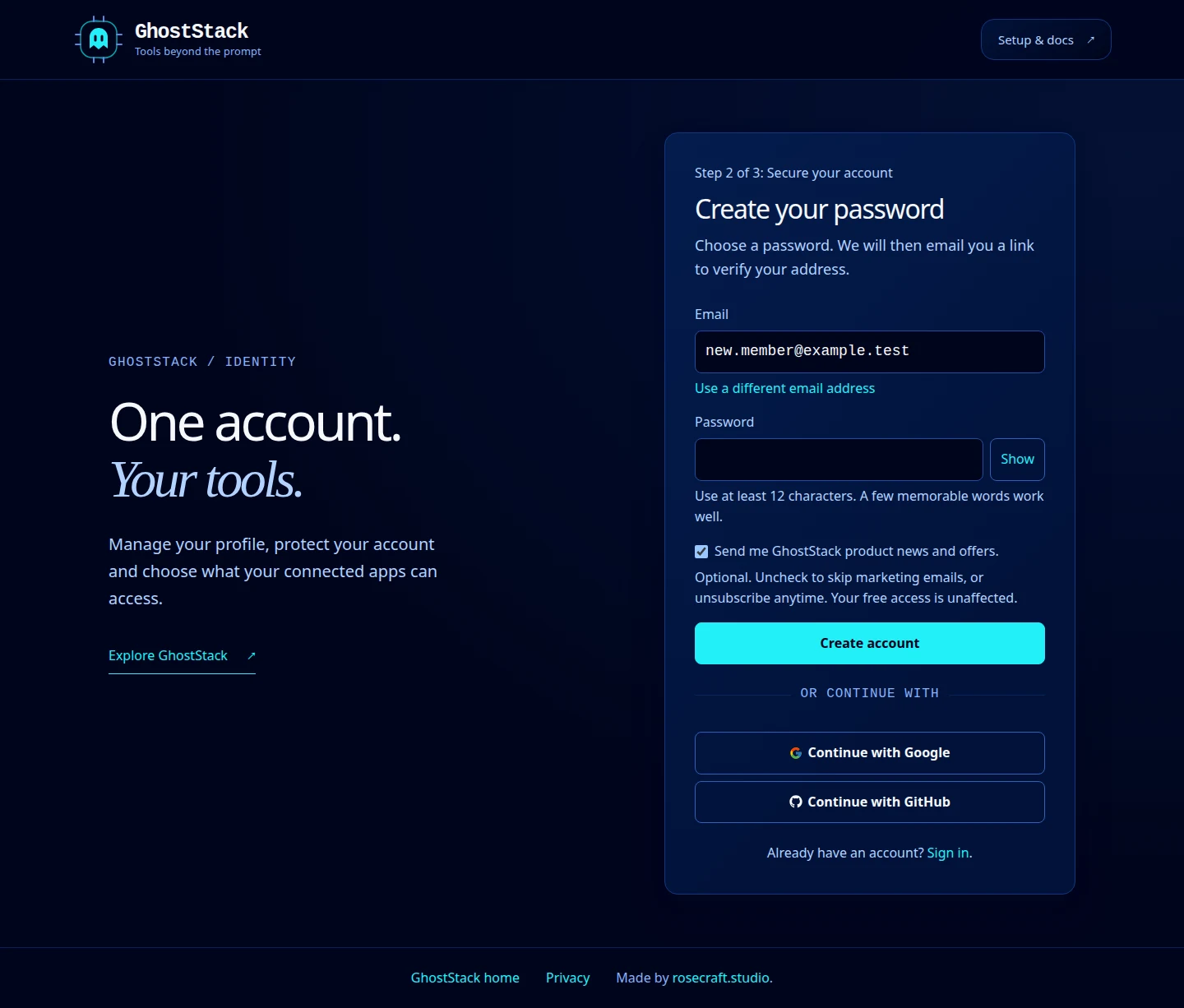
Open this screenshot at full size.
3. Verify your address
The Check your email screen means the request has been submitted. Open the verification message in your inbox and follow its link. Finish the verification and sign-in prompts. After registration, review Email preferences, save your choice, and continue to the dashboard.
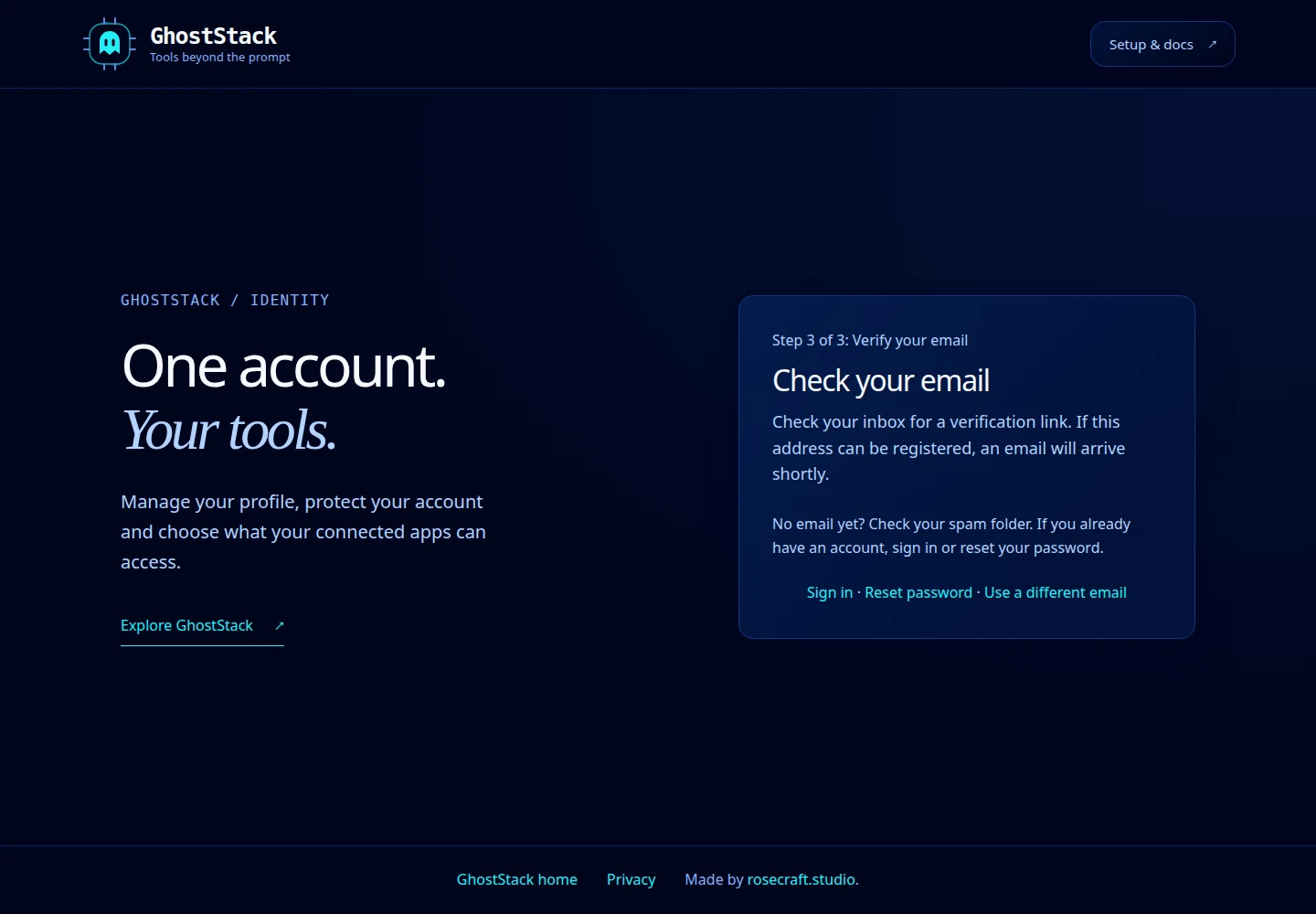
Open this screenshot at full size.
If signup does not finish
Check your spam folder and the address you entered. The confirmation screen deliberately does not disclose whether an email already has an account. If you already registered, sign in or recover access. If the signup link has expired, start again at Create an account.
Google and GitHub options may also appear when those providers are configured. Follow the provider’s sign-in and authorization prompts. Use the same provider when returning to that account.