Navigation
Screenshots show the released Identity interface with fictional demonstration accounts. Reviewed October 15, 2026.
Start here
Sign in and sign out
Before you start: you need an existing GhostStack account. Use the sign-in method associated with that account.
Sign in with email and password
- Open Sign in.
- Enter your Email and Password.
- Select Sign in.
- If prompted, enter your authenticator or backup code. See two-factor authentication.
After sign-in, Identity returns you to the requested page or your dashboard.
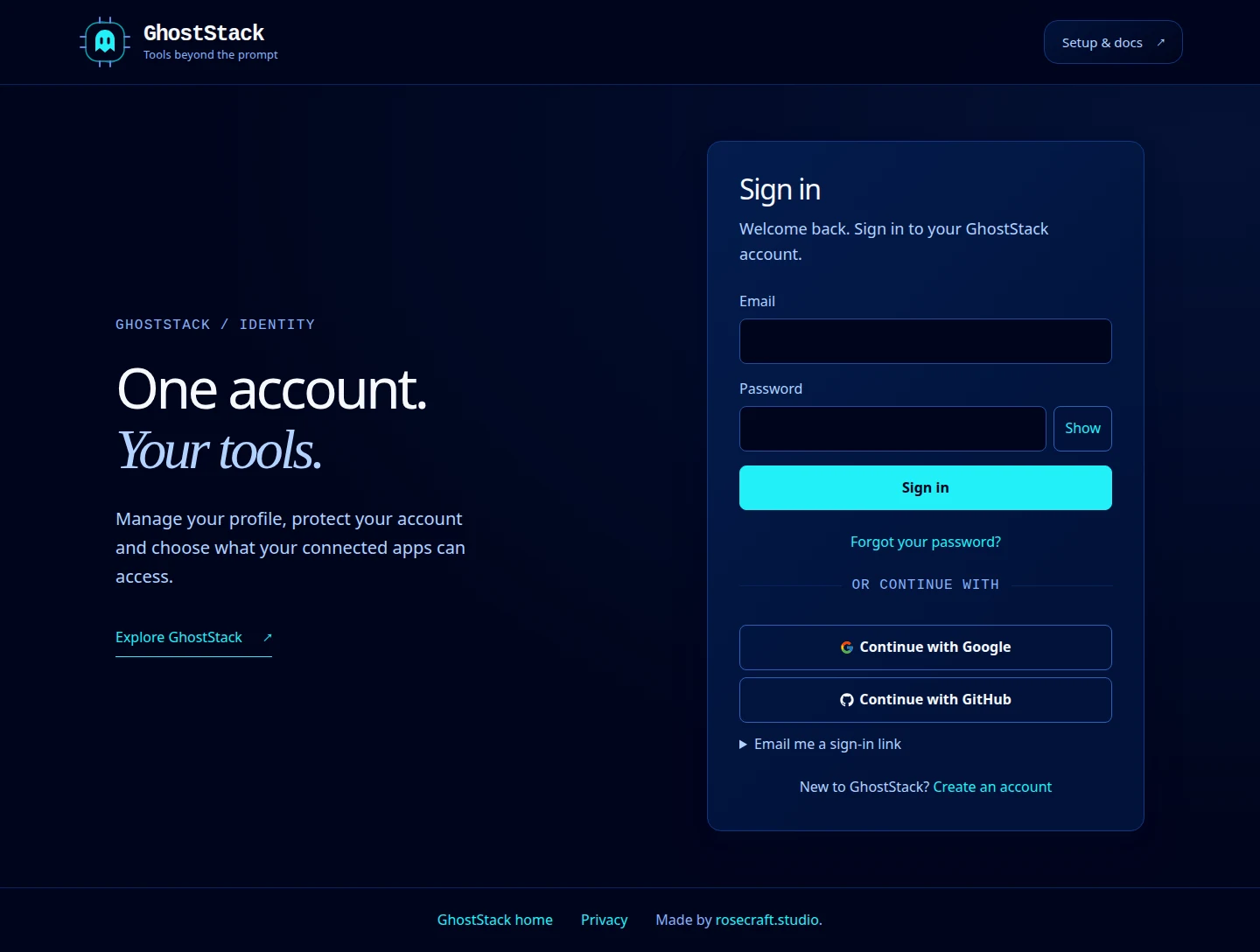
Open this screenshot at full size.
Use an emailed sign-in link
- Expand Email me a sign-in link below the other sign-in options.
- Enter your account’s email and select Email me a link.
- Open the message in your inbox and follow the link, then select Sign in to GhostStack on the landing page.
The link expires after 15 minutes and can be used once. A generic confirmation is normal: it does not reveal whether the address belongs to an account. Two-factor verification still applies when required.
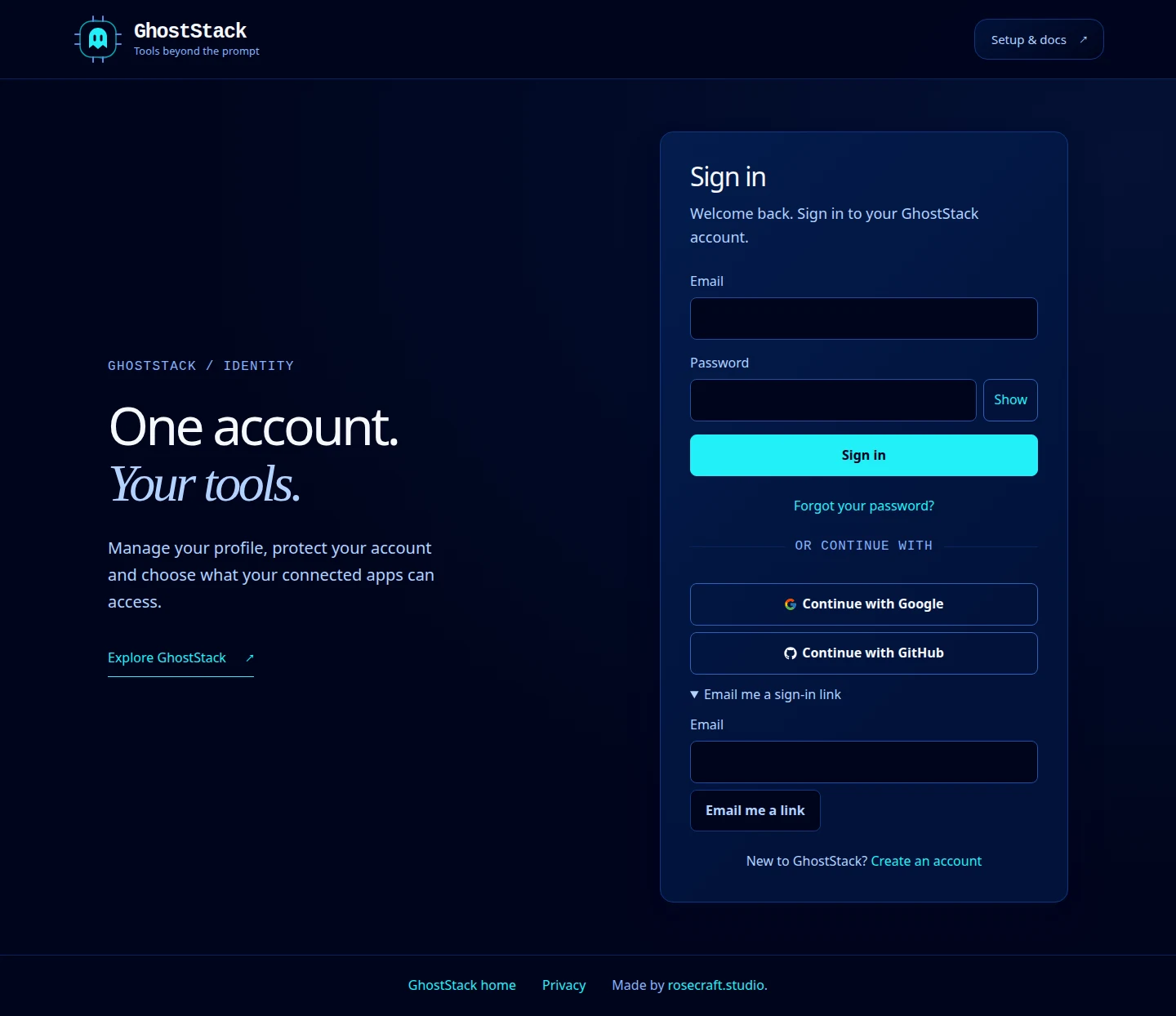
Open this screenshot at full size.
Use Google or GitHub
Select the matching provider when it is offered, then complete its prompts. The Sign-in methods page shows which methods are linked to your account. It cannot add new methods from that screen.
Sign out
Open your avatar at the top right and select Sign out. To end access on another device, use Active sessions.
If Identity says You are already signed in after another tool sends you back, check the account and workspace shown. Use Manage your workspaces to select one with access, then return to the tool. Re-entering the same password will not grant missing product access.