Navigation
Screenshots show the released Identity interface with fictional demonstration accounts. Reviewed October 15, 2026.
Your account
Review and end sessions
Where: choose Sessions in the sidebar, or Active sessions from Profile.
Review the list
- Check Device, Status and Last seen.
- The This device badge identifies your current browser session.
- Use Search devices to look for a browser or operating system, such as Chrome or Windows, then press Enter.
- Use the pagination controls when more sessions are available.
Device names come from the browser’s reported information. Unknown device means that information was unavailable or unrecognized; it is not proof of a separate person signing in.
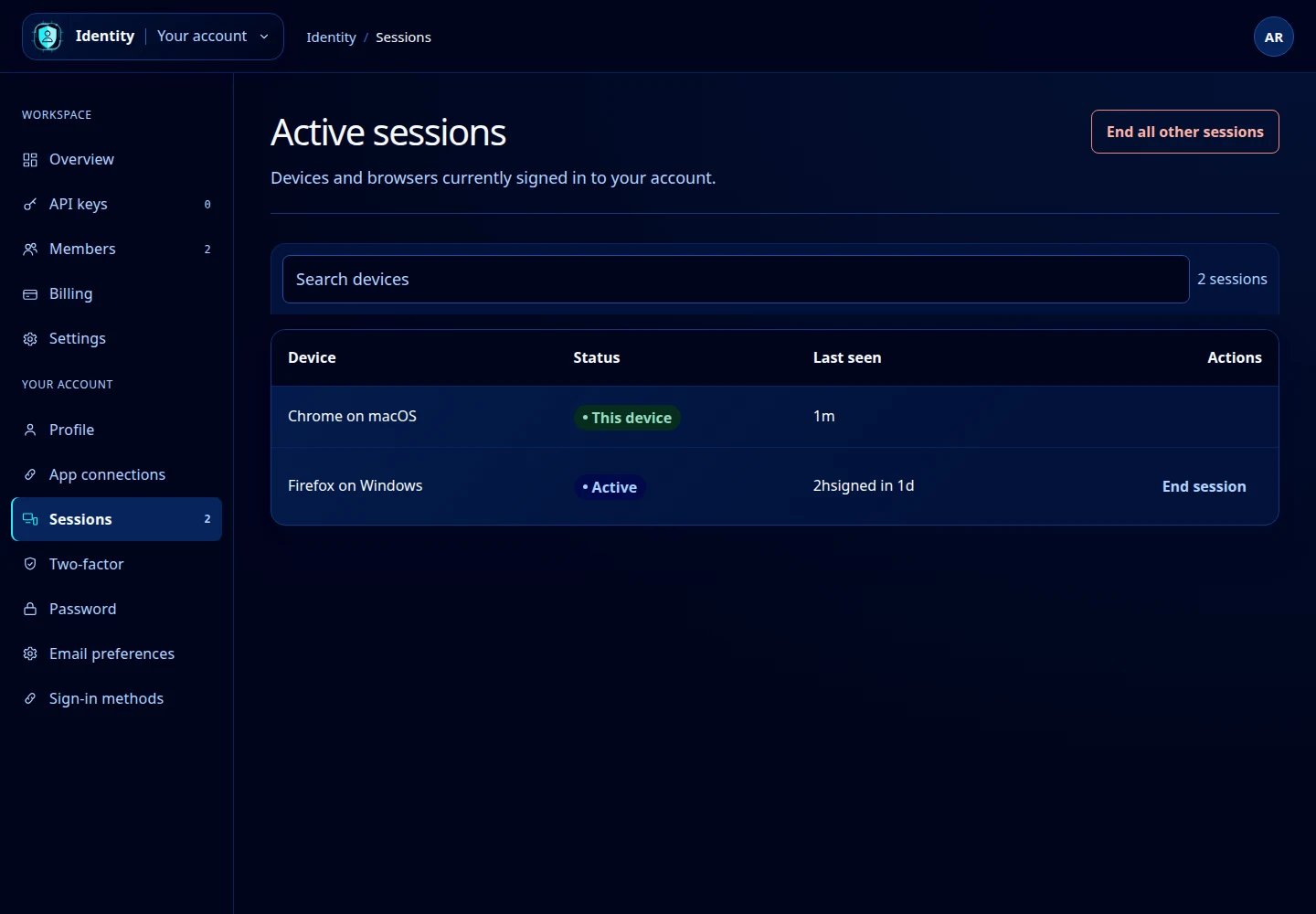
Open this screenshot at full size.
End a single session
Find the other device and select End session. It disappears from the active list and must sign in again. There is no End session button on the current-device row; use the avatar menu’s Sign out for that browser.
End sessions across your account
The current interface labels its bulk action End all other sessions. At present, this action also signs out the browser you are using and returns it to Sign in. Have your password and two-factor method available before selecting it.
If a session is unexpected, end it and review your password, two-factor settings and app connections. App authorizations are managed on their own screen.