Navigation
Screenshots show the released Identity interface with fictional demonstration accounts. Reviewed October 15, 2026.
Help
Troubleshoot Identity
I cannot see a tool or menu
Check the account and workspace in the top-left menu. Tool availability depends on access and release status. Workspace Members, Billing and Settings depend on your role. Platform Administration requires the separate super-admin role and two-factor verification. A hidden tool is not unlocked by creating an API key.
I sign in, then return to Sign in
If the page says You are already signed in, check the displayed workspace and account. The destination tool may not accept that context. Select Manage your workspaces, choose a workspace with access, then return to the tool. Use Continue to app only after checking it.
A page says it expired
Reload the page before retrying its form. If Identity says your session expired or was ended, sign in again. If it is an emailed signup, invitation, reset or consent link, restart that specific flow or request a replacement. Do not keep retrying a consumed link.
I need to pair Pilot again
Check App connections for revoked or inactive access. Restart pairing from Pilot when authorization is no longer valid. For extension, browser-selection or AI-client issues, follow Pilot troubleshooting. Identity’s API-key screen is not the browser-pairing flow.
An invitation will not work
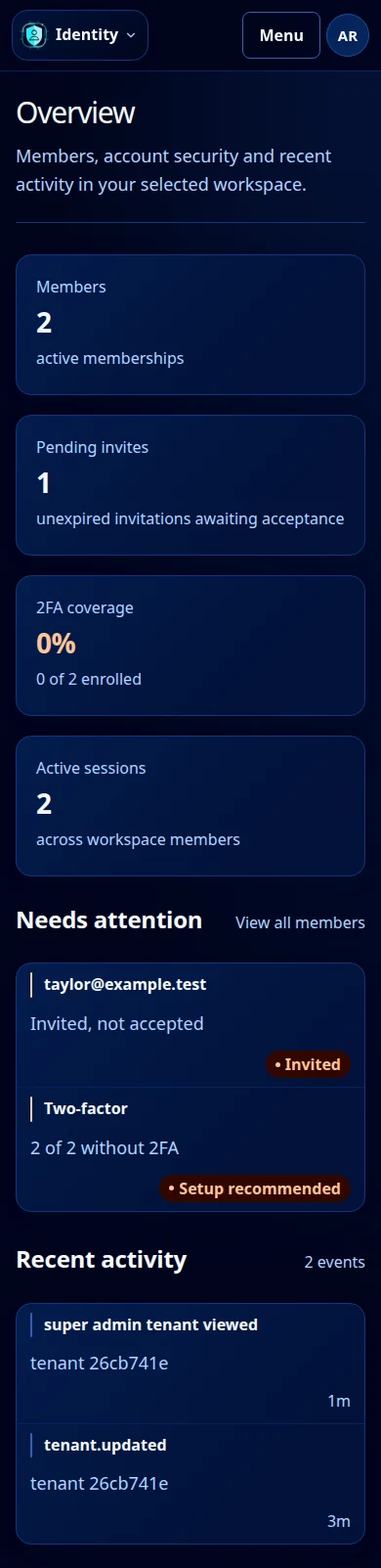
Sign in with the invited email. If the account is new, finish registration and verification, then reopen the invitation email. Ask the administrator for a new invitation when the link is expired or revoked. See Members and invitations.
I cannot open platform administration
A workspace Admin is not a platform super-admin. If you have the platform role, enroll two-factor and finish the fresh verification prompt. If the role is missing, the platform owner must review it. The documentation cannot grant that access.
A table is cut off on my phone
Scroll horizontally inside the table frame to reach the other columns. Open the sidebar using the navigation button. In these guides, select a screenshot’s full-size link if labels are too small in the article.
Contact support
Use Contact. Include the screen name, the action you attempted, the visible error and approximate time. Include a workspace or account identifier only when relevant. Do not send passwords, full API keys, sign-in/reset links, authenticator setup secrets or backup codes. Crop or redact unrelated personal information in your own screenshots.