Navigation
Screenshots show the released Identity interface with fictional demonstration accounts. Reviewed October 15, 2026.
Your account
Manage app connections
Where: choose App connections in the sidebar or from Profile. This page includes authorizations across your workspaces.
Review an authorization
For each connection, check its app name, target resource, permissions and workspace. A row can represent an app authorization or a linked browser/device. Older connections may say they were authorized before detailed tracking was added.
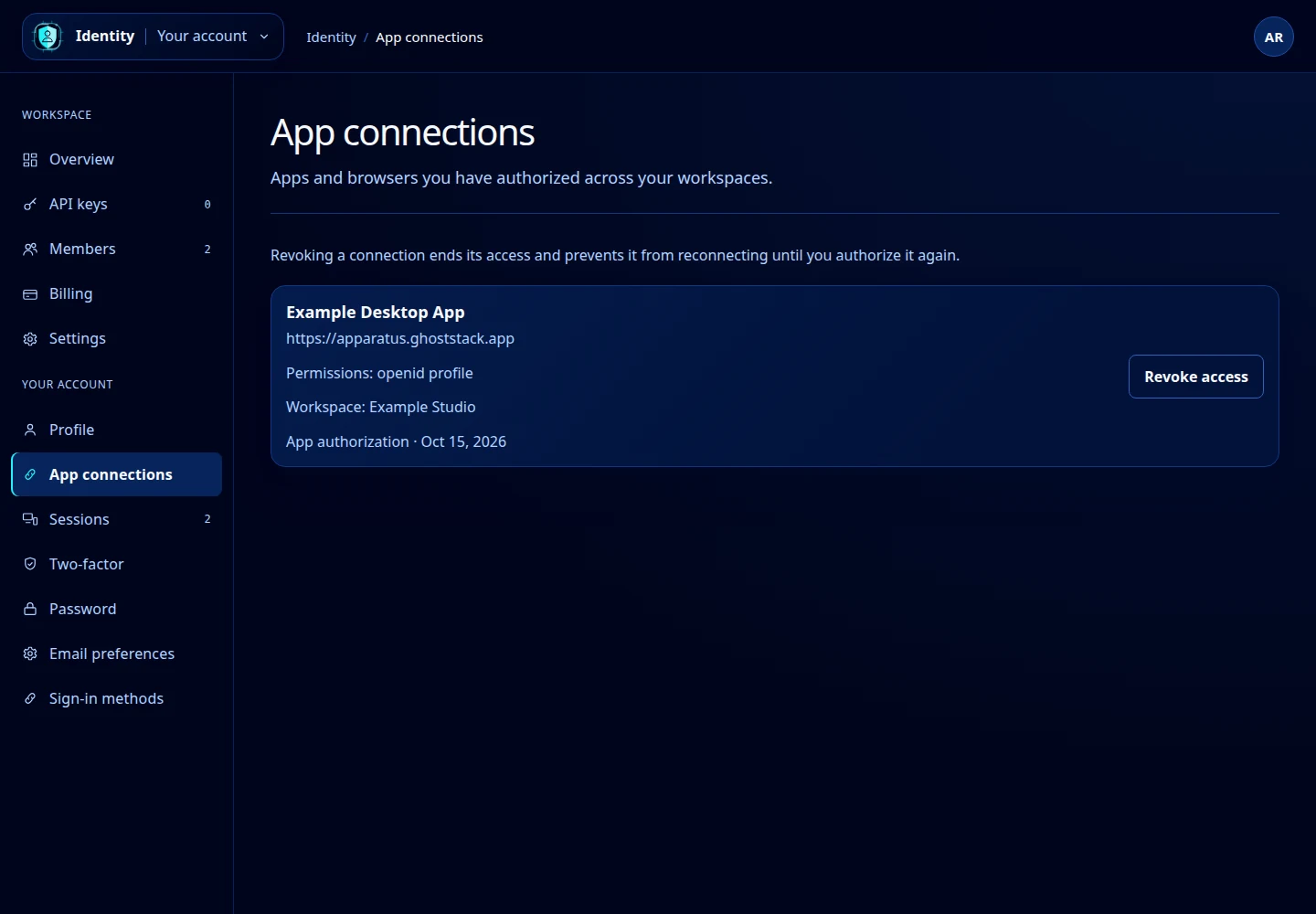
Open this screenshot at full size.
Revoke access
- Locate the connection you want to end.
- Check its workspace and permissions so you choose the right one.
- Select Revoke access.
- The authorization becomes inactive. The app or browser must be authorized again before reconnecting.
Revocation is appropriate for an app you no longer use or do not recognize. To connect it again later, start from that tool and complete its authorization process.
No connections listed
The empty state means there are no recorded connections to display. Start from the tool you want to connect in the top-left menu. For Pilot, follow browser and client setup.
This page differs from Sign-in methods, which controls how you enter your account, and Sessions, which lists signed-in devices.