Navigation
Screenshots show the released Identity interface with fictional demonstration accounts. Reviewed October 15, 2026.
Workspaces
Choose workspace roles
Required access: a workspace Admin. Roles apply to the workspace in which they are assigned.
Choose the appropriate role
| Role | Identity workspace controls |
|---|---|
| Admin | Manage workspace details, invitations, other members and permitted billing actions. |
| Member | View the workspace and use the product access granted to the account. No workspace administration controls. |
| Viewer | View workspace information. No membership-management controls. |
Product permissions also depend on the tool and its access rules. A workspace role is not a subscription and does not unlock a closed product. The separate super-admin role is for platform operators and is not assigned through this dropdown.
Change a teammate’s role
- Select the intended workspace and open Members.
- Find the teammate by name and email.
- Open their Role selector and choose Admin, Member or Viewer.
- Wait for the change to finish. The role selector saves the change directly; there is no separate Save button.
- If an error appears, the selector returns to the previous role. Resolve the error before assuming access changed.
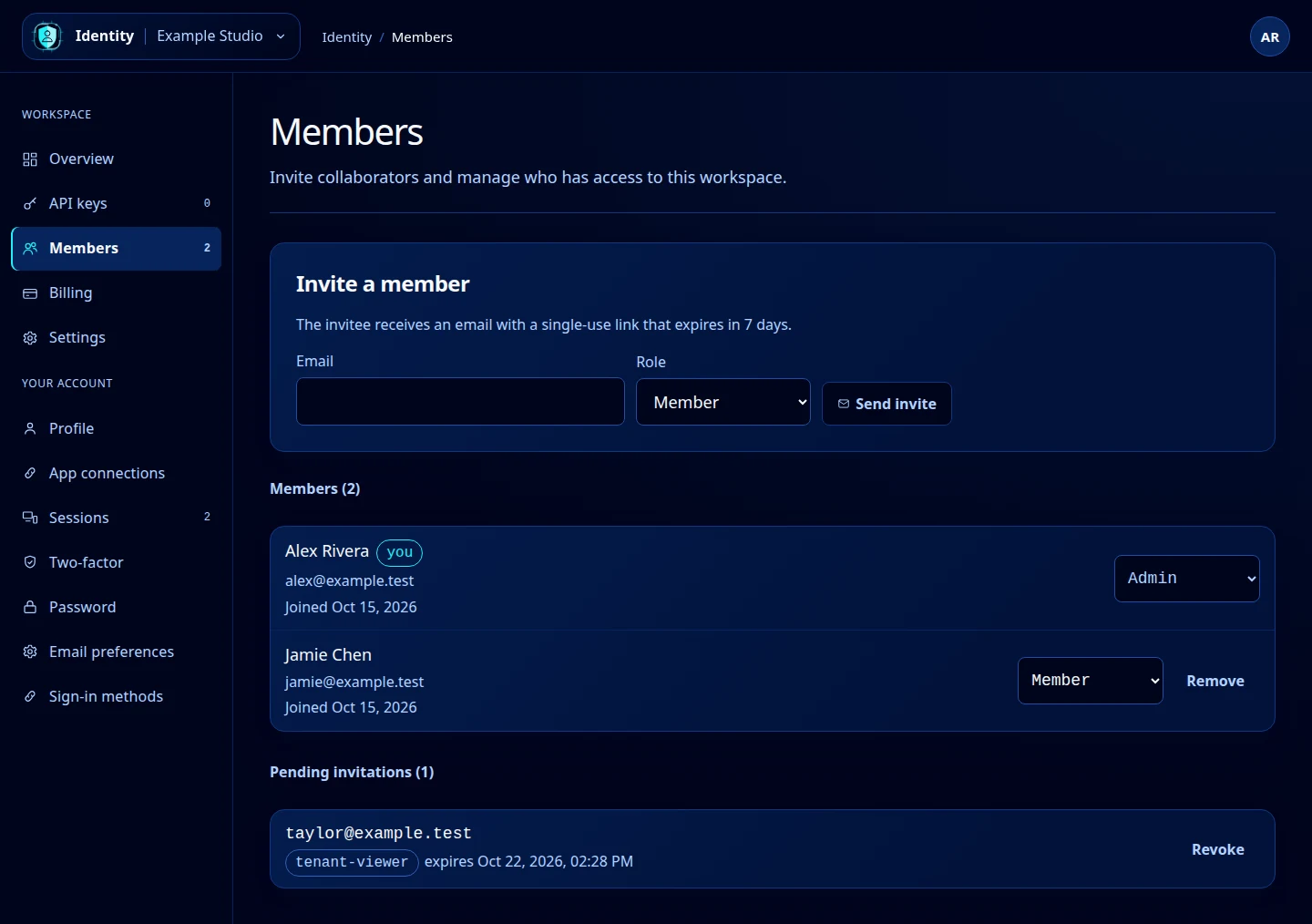
Open this screenshot at full size.
Role changes that are restricted
You cannot change your own role from this list. Identity also prevents removing or demoting the last administrator. Arrange another administrator’s access before reducing an existing administrator’s role.
If someone cannot see Members, Billing or Settings, first check their role in this workspace. Their role in another workspace may be different.