Navigation
Screenshots show the released Identity interface with fictional demonstration accounts. Reviewed October 15, 2026.
Platform administration
Search and export the audit log
Required access: platform administration. Audit exports may contain account and workspace information; store and share them only with people authorized to review it.
Find recorded actions
- Choose Audit in the Operator sidebar.
- Start with a time window using From (UTC) and To (UTC). Enter UTC times, not your local timezone.
- Add filters as needed: Actor user ID, Resource type, Resource ID, Action or Correlation ID.
- Select Apply filters.
- Review the matching-row count and results. Use Clear filters to start again.
The example below filters Action to tenant.updated, showing a workspace update.
Use complete identifiers in the filters. Table cells shorten some identifiers to keep rows readable. The actor can be (system) for an automated action.
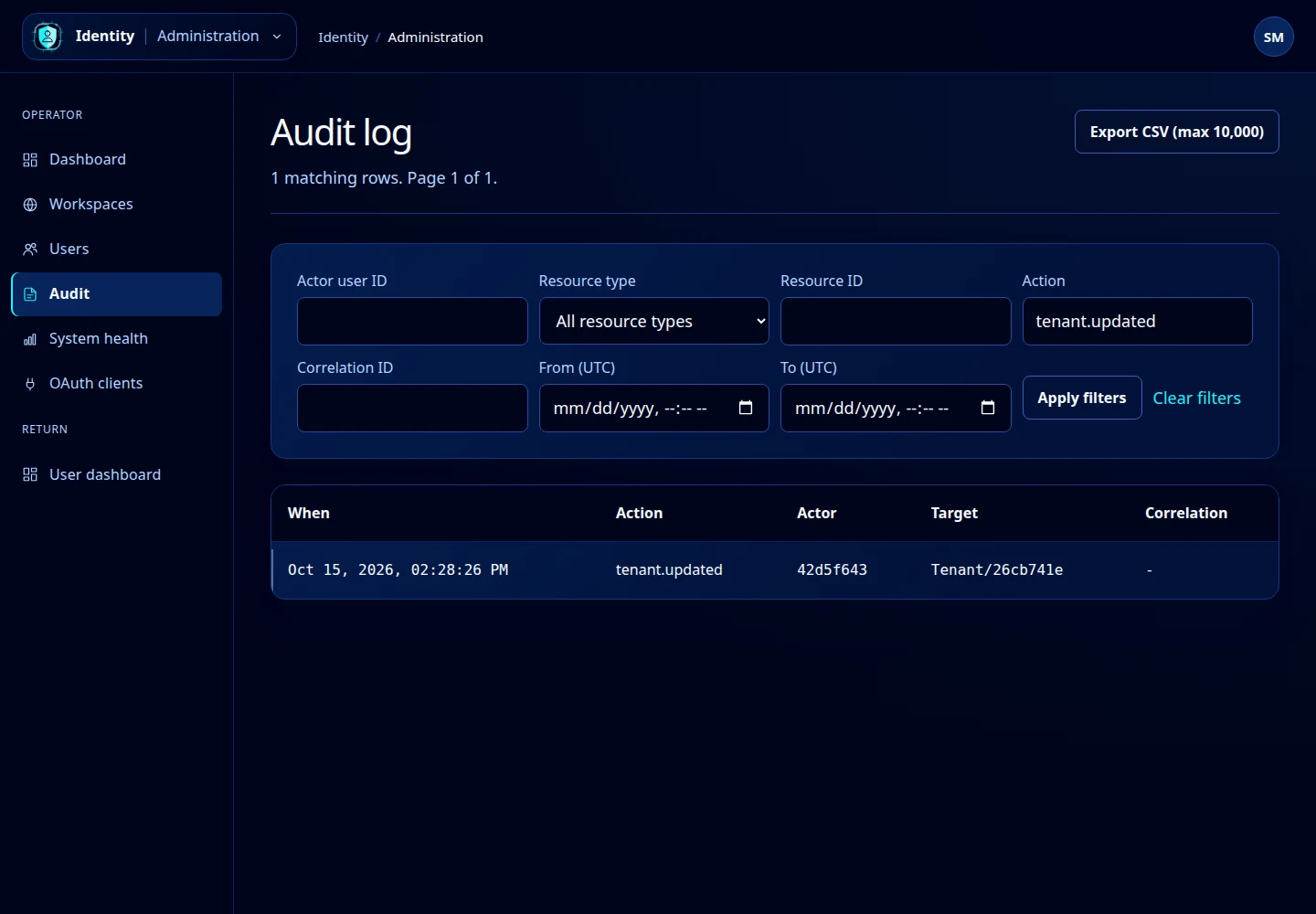
Open this screenshot at full size.
Export matching events
- Apply the desired filters and check the results.
- Select Export CSV (max 10,000).
- Open the downloaded CSV in your preferred viewer.
The export uses the active filters and is capped at 10,000 rows. Narrow the time range if an investigation needs a smaller, complete slice. The page’s Previous/Next controls browse results without changing the filter values.
No matching rows
Remove a filter or widen the time range. Check full identifiers, action spelling and UTC conversion. An empty filtered result is not evidence that no activity occurred anywhere on the platform.