Navigation
Screenshots show the released Identity interface with fictional demonstration accounts. Reviewed October 15, 2026.
Workspaces
Review workspace billing
Required access: a workspace role with billing-read permission, normally a workspace Admin. Select the intended workspace, then open Billing.
Read the billing page
If the workspace has no paid subscriptions, the page says No paid subscriptions. Available account tools can still be used. This message does not mean the account is broken or that you need to purchase access to continue.
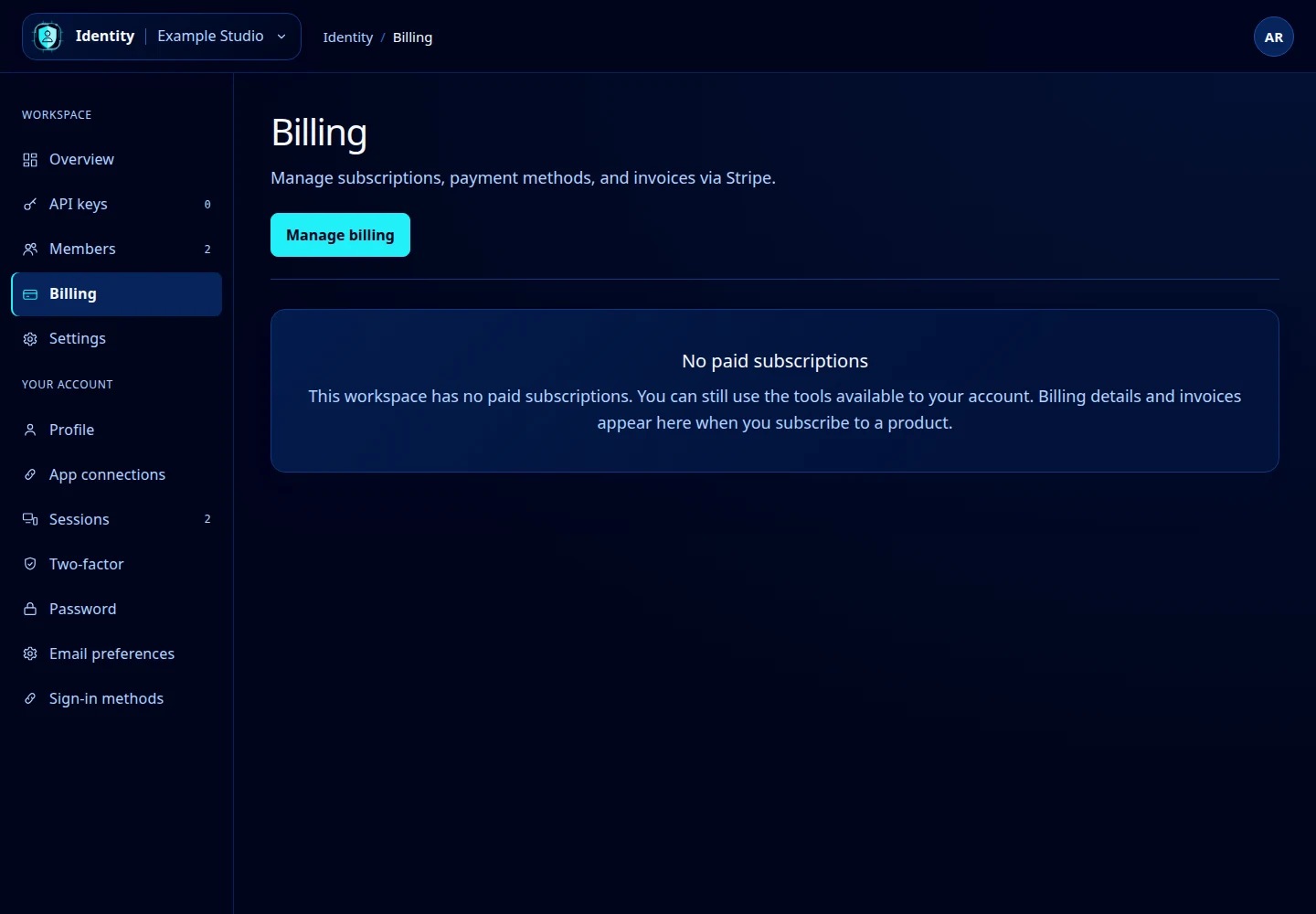
Open this screenshot at full size.
When subscriptions exist, their cards show the product, tier and status, current-period end, whether cancellation is scheduled at period end, and start date. These are records for this workspace; check the workspace name before making changes.
Open the billing portal
- Select Manage billing.
- If the workspace’s billing integration is available, Identity opens its Stripe Customer Portal.
- Review the portal’s available subscription, payment-method and invoice controls.
- Confirm the details of any change in the portal, then return to Identity and check the resulting status.
Available paid products and portal actions depend on the workspace and billing configuration. This tutorial does not announce paid access to unreleased products.
If the portal does not open
Read the error displayed on Billing. A temporary billing or Stripe failure may allow retrying later. If Identity says it cannot start a portal session, contact support with the workspace identifier. Do not repeatedly submit a payment change when its result is unclear.
The workspace’s billing email can be edited under Workspace settings. The platform-admin workspace overview is read-only and is not a replacement billing portal.