Navigation
Screenshots show the released Identity interface with fictional demonstration accounts. Reviewed October 15, 2026.
Your account
Use two-factor authentication
Where: choose Two-factor in the sidebar. You need an authenticator app that can generate six-digit codes.
Set up an authenticator
- Select Set up two-factor authentication.
- Scan the QR code with your authenticator. If scanning is unavailable, expand Cannot scan the QR? Show the secret as text. and enter it in the app.
- Type the 6-digit code from your authenticator.
- Select Verify and enroll.
- Save the displayed backup codes somewhere secure, acknowledge that you saved them, and continue.
The QR code, setup secret and backup codes belong only to your account. The screenshots here deliberately show the settings and verification forms without those secrets.
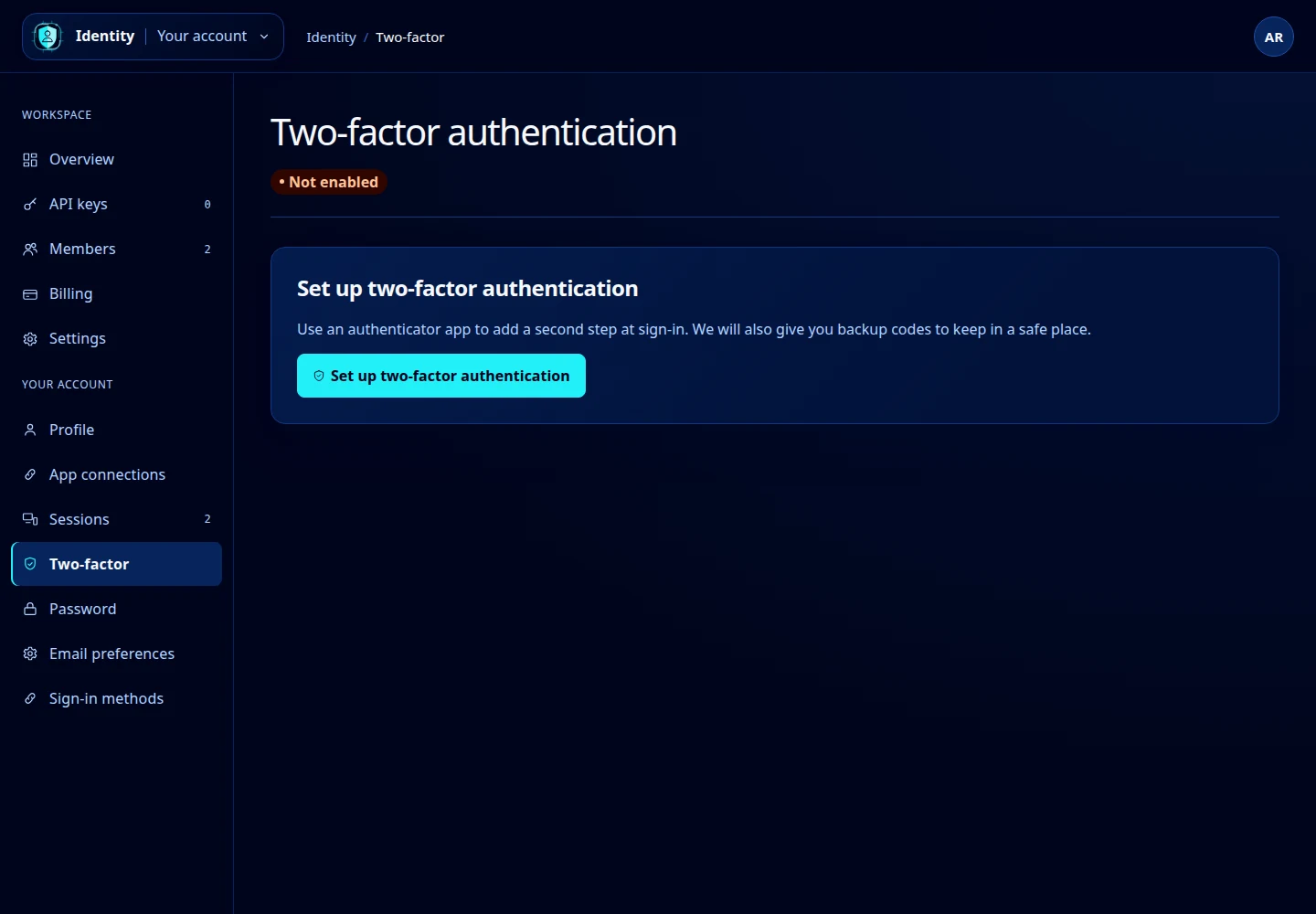
Open this screenshot at full size.
Complete a sign-in challenge
Choose Authenticator code and enter its current six-digit code, or choose Backup code and enter an unused saved code. Select Verify. Each backup code works once. If the challenge expires or locks, use Restart verification when offered; do not keep submitting the same expired code.
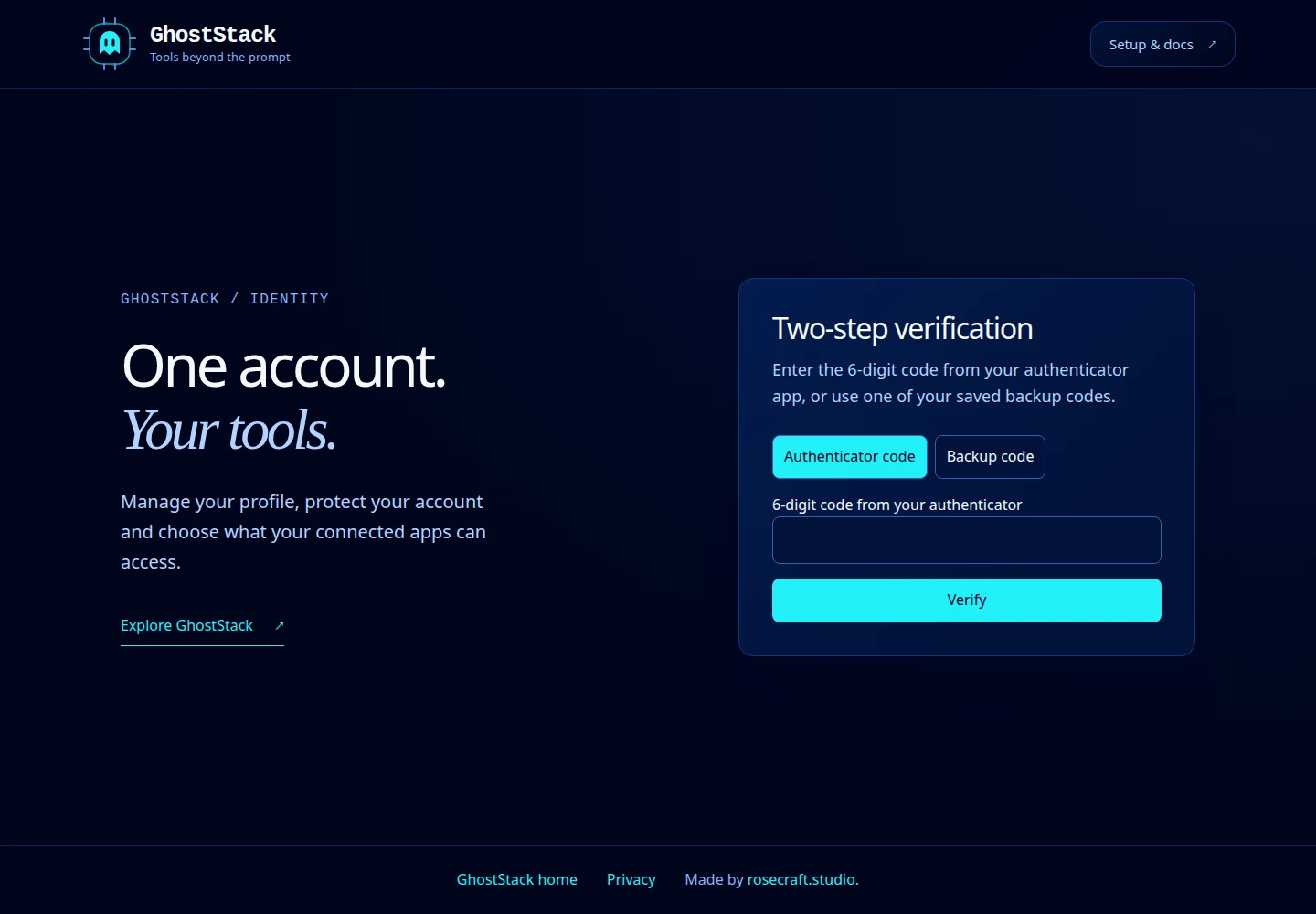
Open this screenshot at full size.
Replace backup codes
On the enabled settings page, enter your current password when requested and an authenticator or backup code. Select Regenerate backup codes. Save the new set, check I have saved these codes, then select Done. Old backup codes stop working immediately.
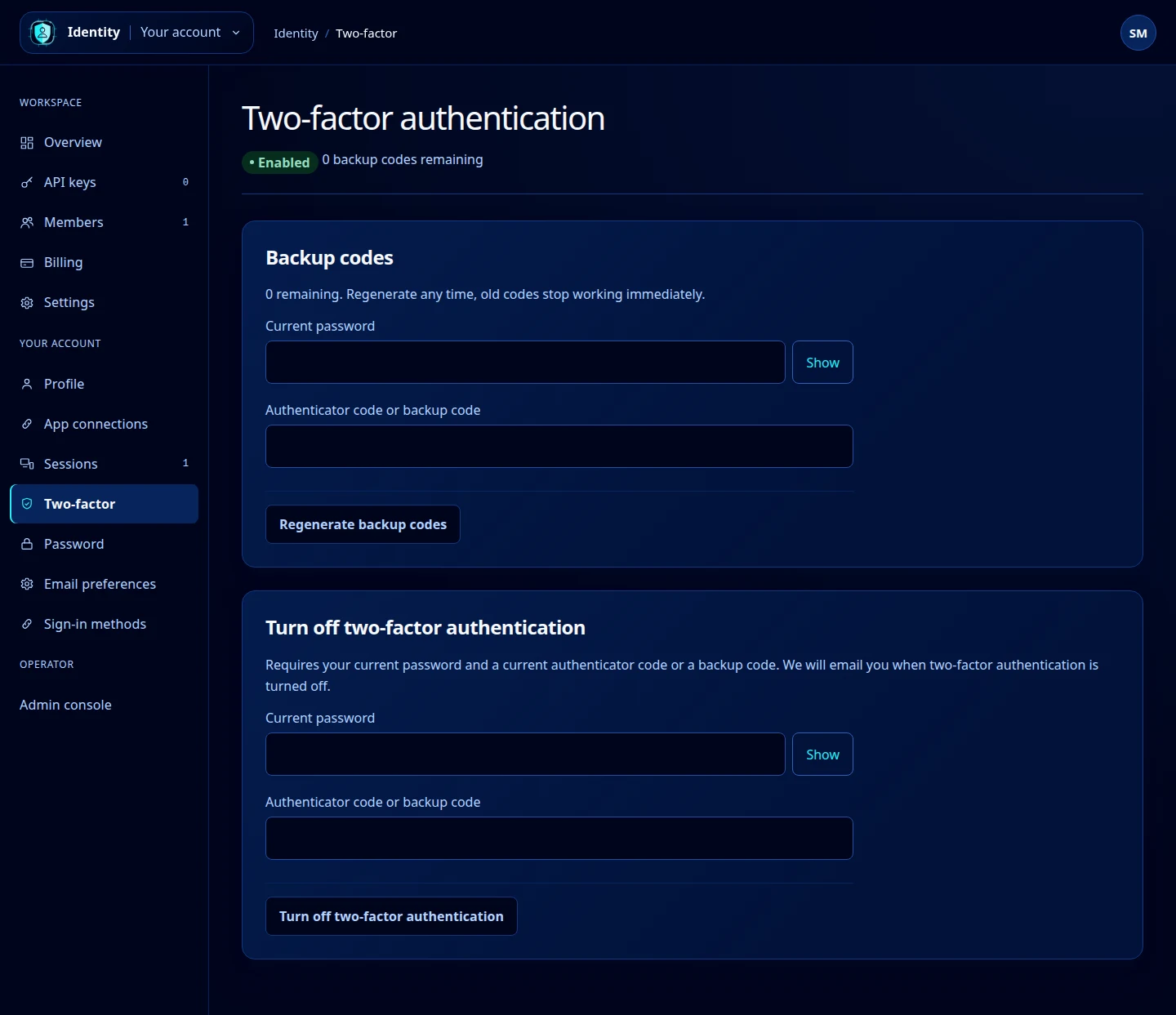
Open this screenshot at full size.
Turn off two-factor authentication
Use the separate Turn off two-factor authentication section and provide the requested password and code. Identity sends a notification email when it is turned off. Platform super-admin accounts must keep two-factor enabled and cannot use this action while holding that role.
If neither your authenticator nor a backup code is available, follow Recover account access.